Documentation Index
Fetch the complete documentation index at: https://infisical-feat-gateway-connector.mintlify.app/llms.txt
Use this file to discover all available pages before exploring further.
Alternatively, you can use Infisical’s official GitHub Action
here. Connecting with GitHub App (Recommended)
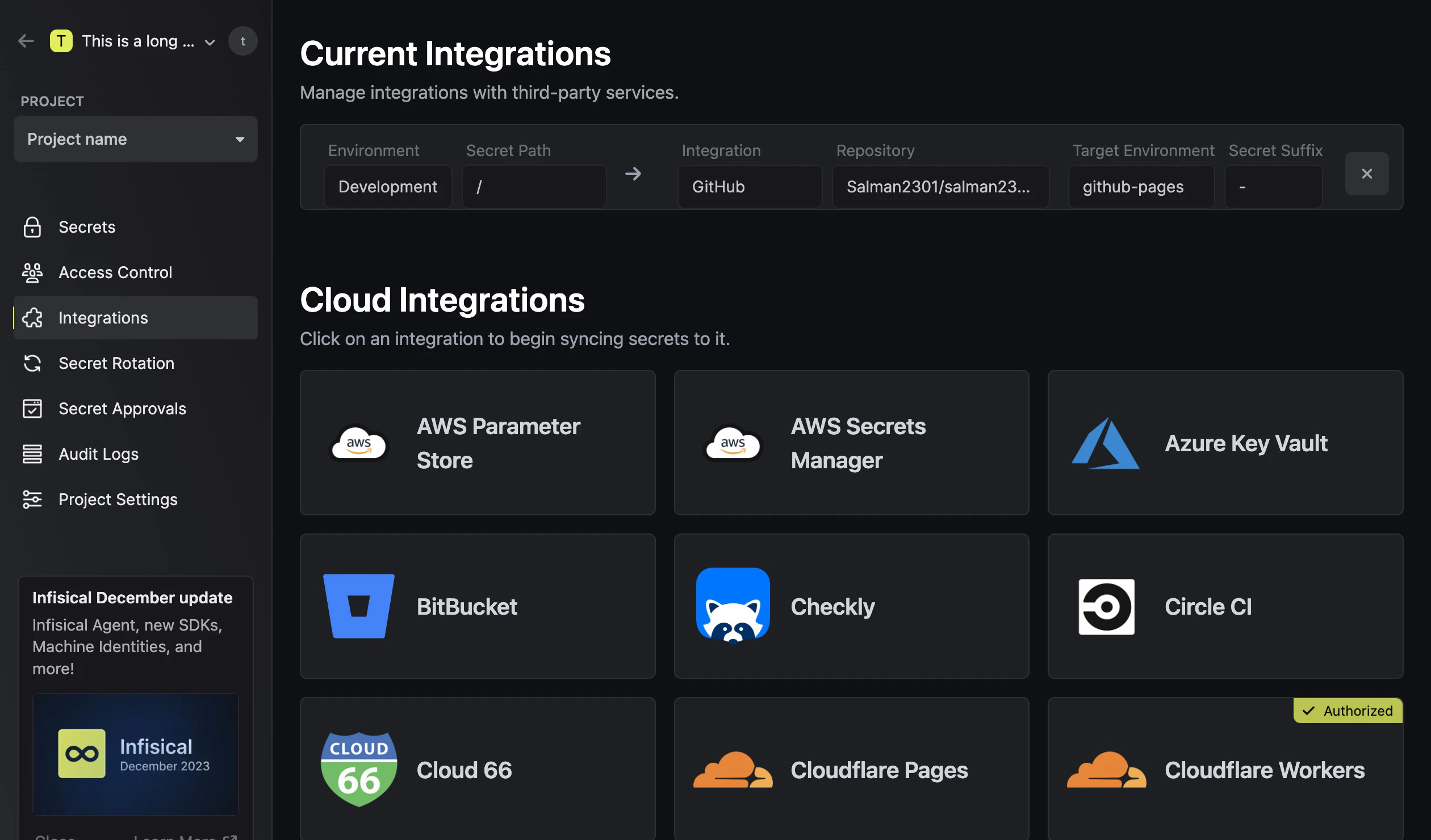
Configure Infisical GitHub integration
Select which Infisical environment secrets you want to sync to which GitHub organization, repository, or repository environment. Repository
Organization
Repository Environment
 When using the organization scope, your secrets will be saved in the top-level of your GitHub Organization.You can choose the visibility, which defines which repositories can access the secrets. The options are:
- All public repositories: All public repositories in the organization can access the secrets.
- All private repositories: All private repositories in the organization can access the secrets.
- Selected repositories: Only the selected repositories can access the secrets. This gives a more fine-grained control over which repositories can access the secrets. You can select both private and public repositories with this option.
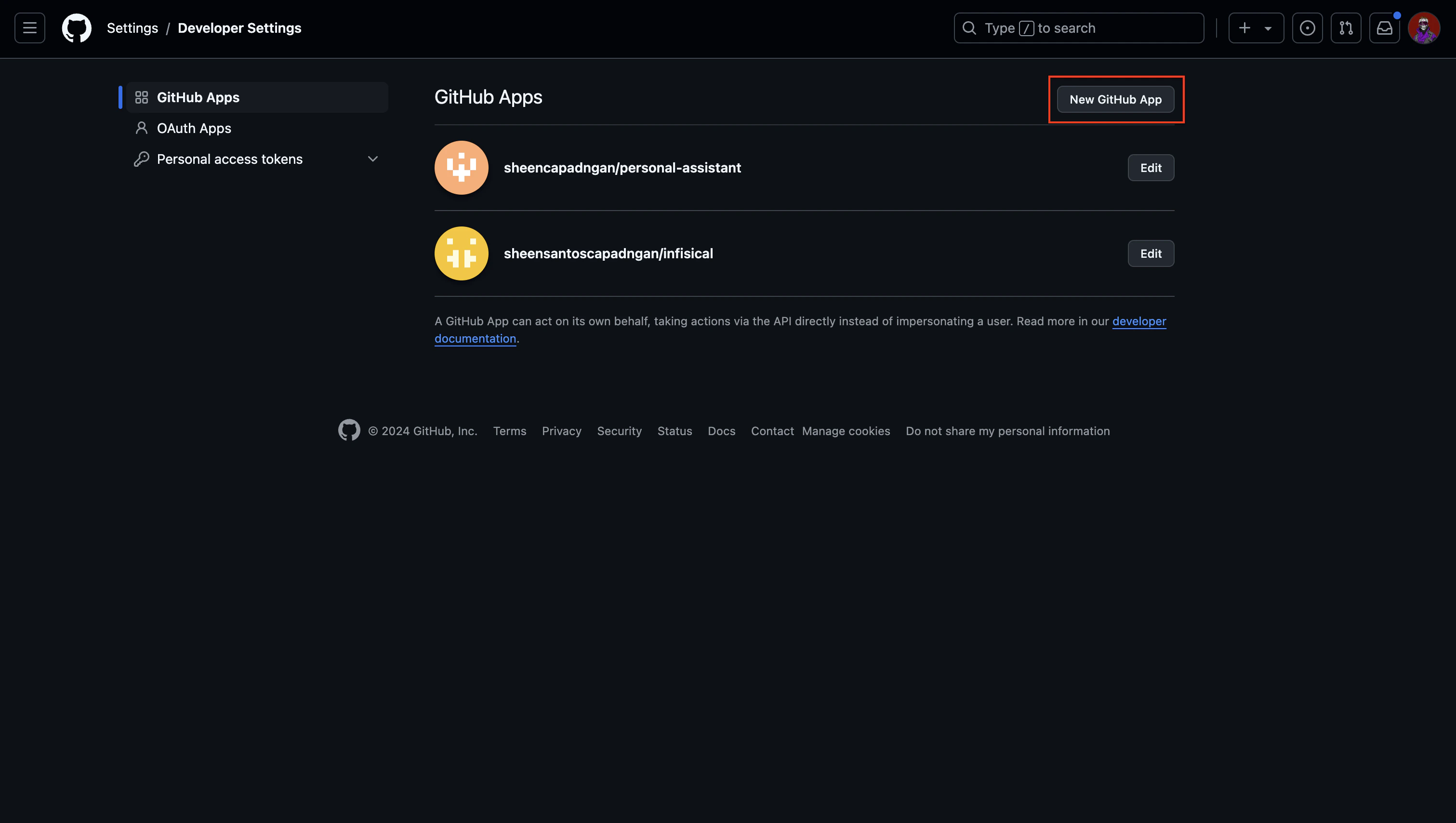
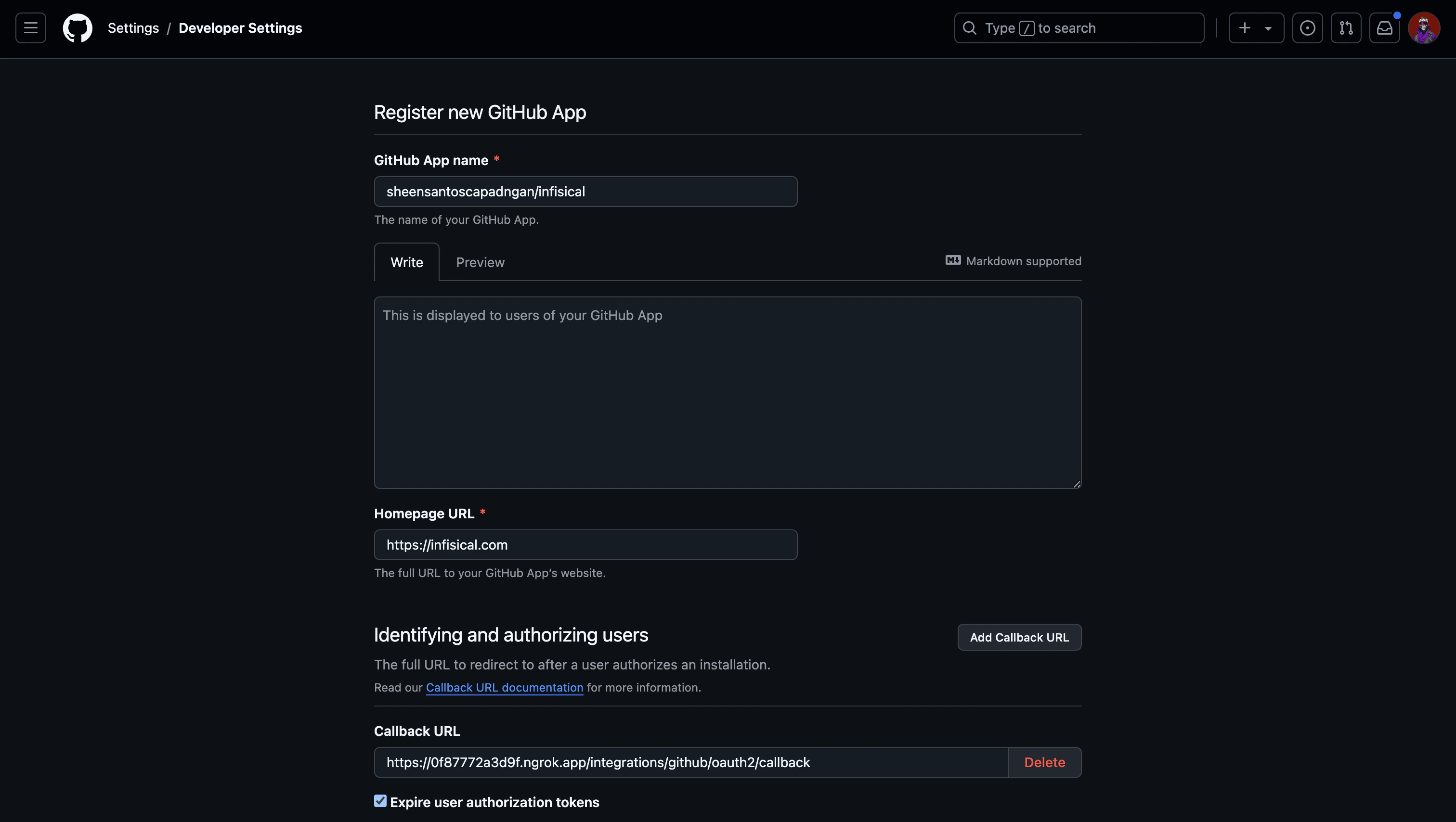
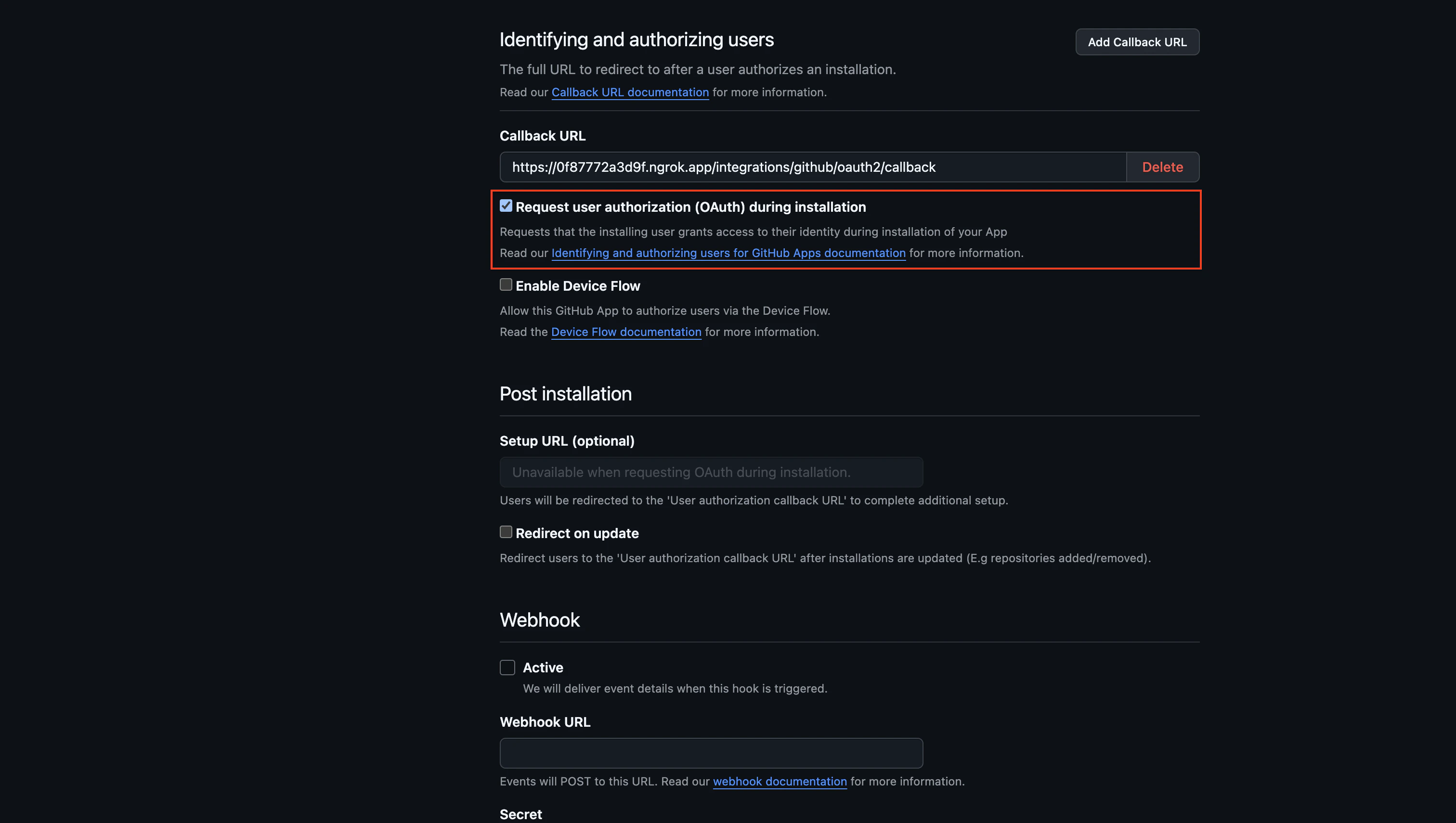
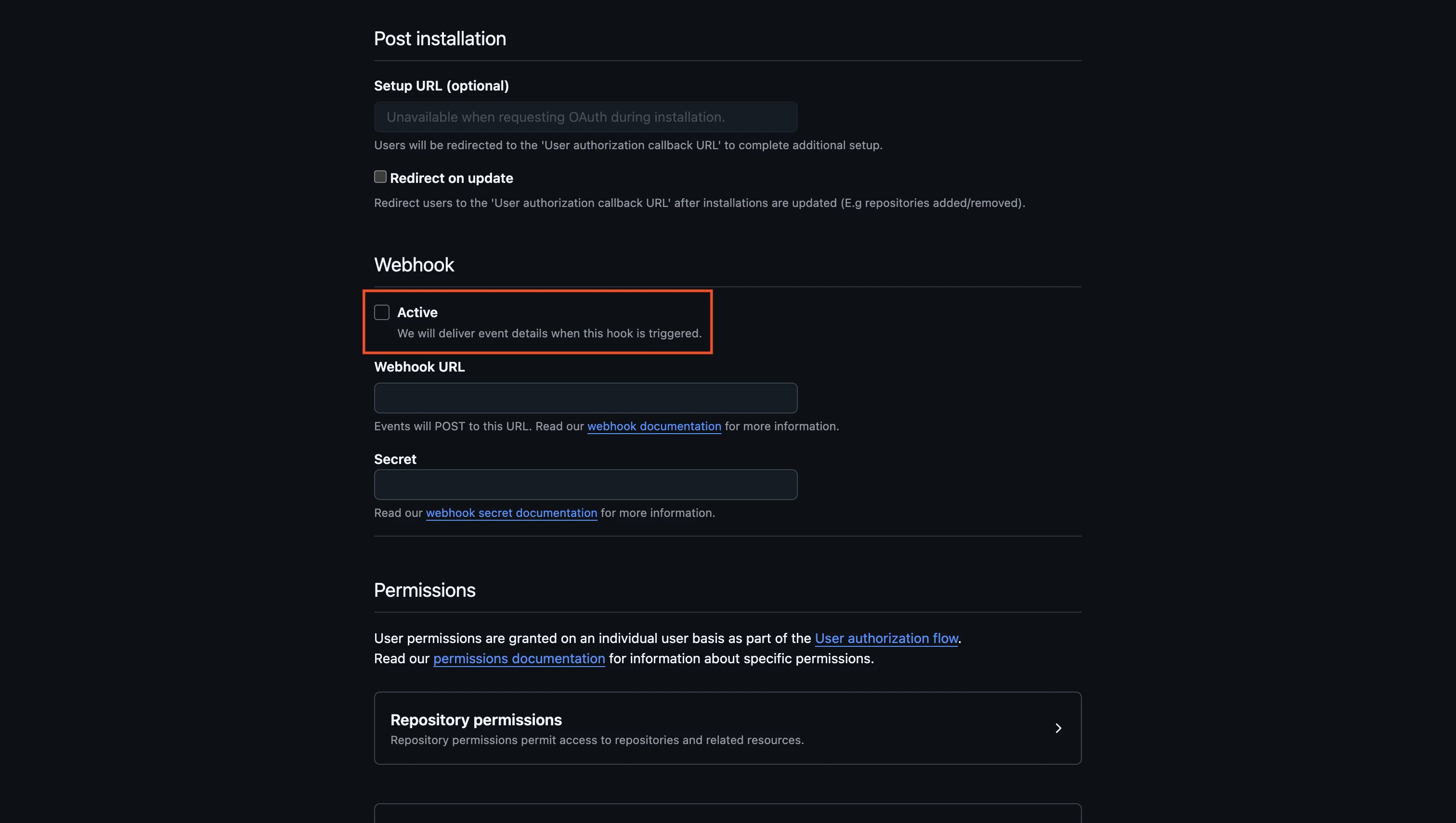
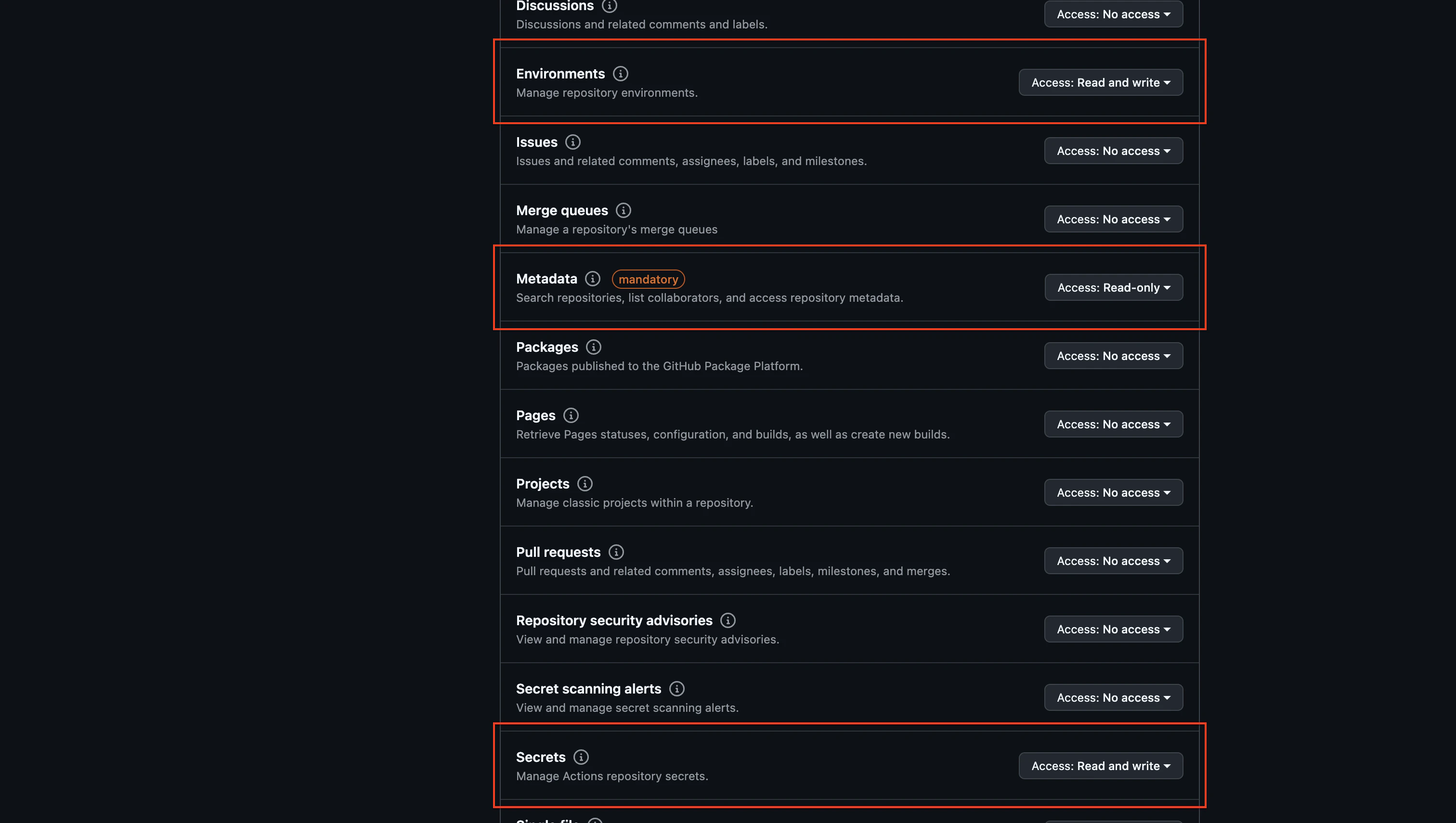
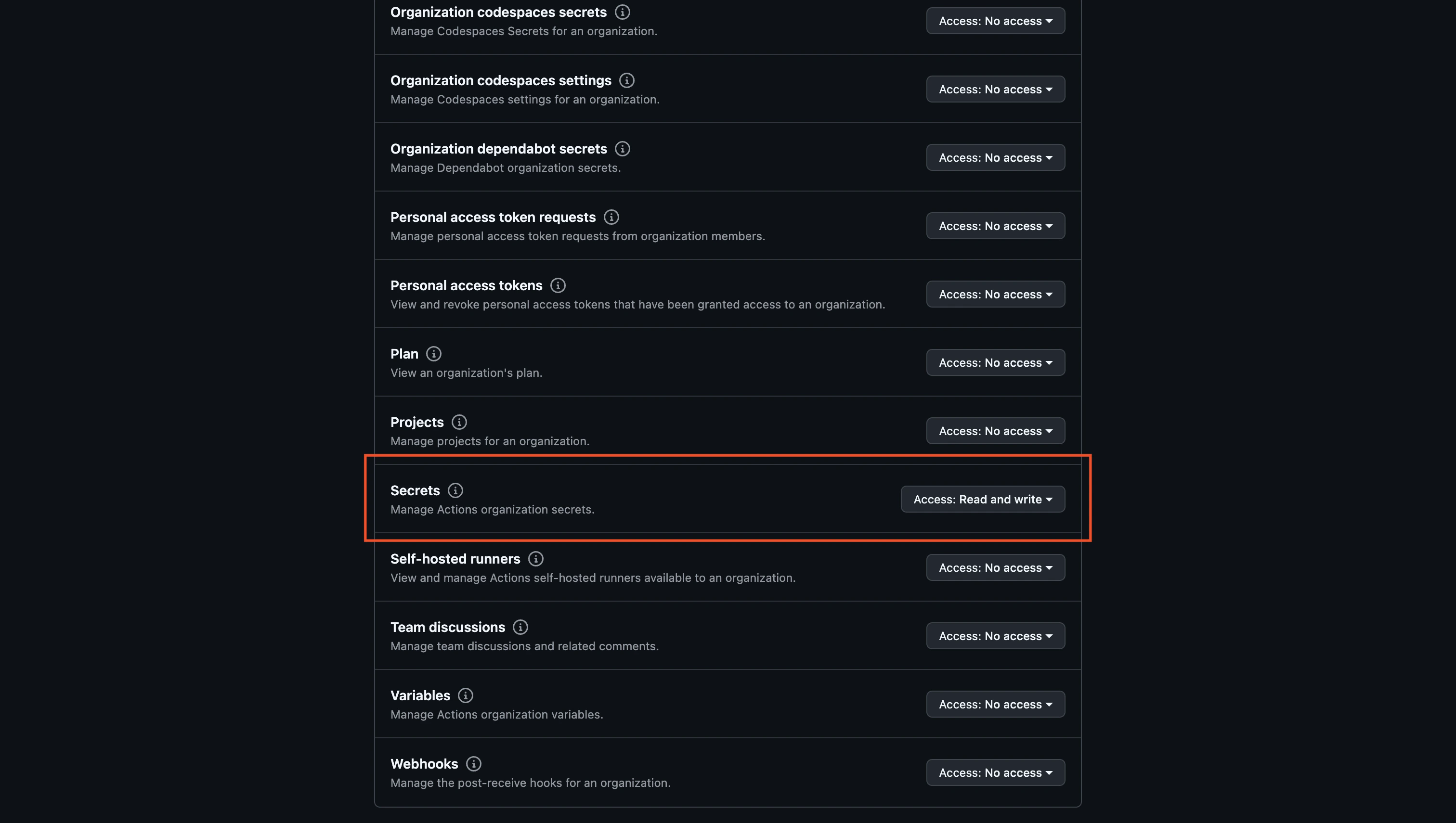
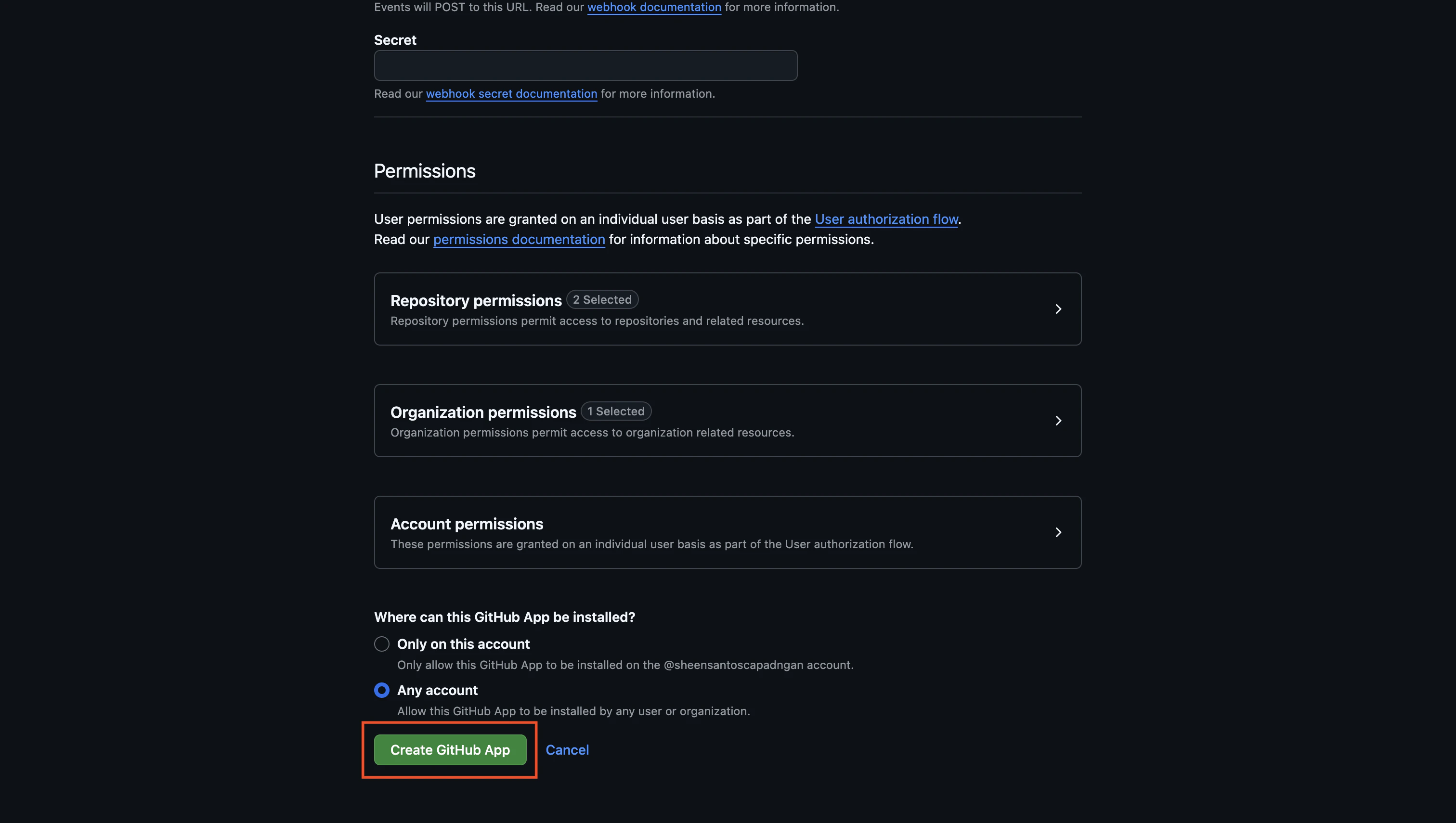
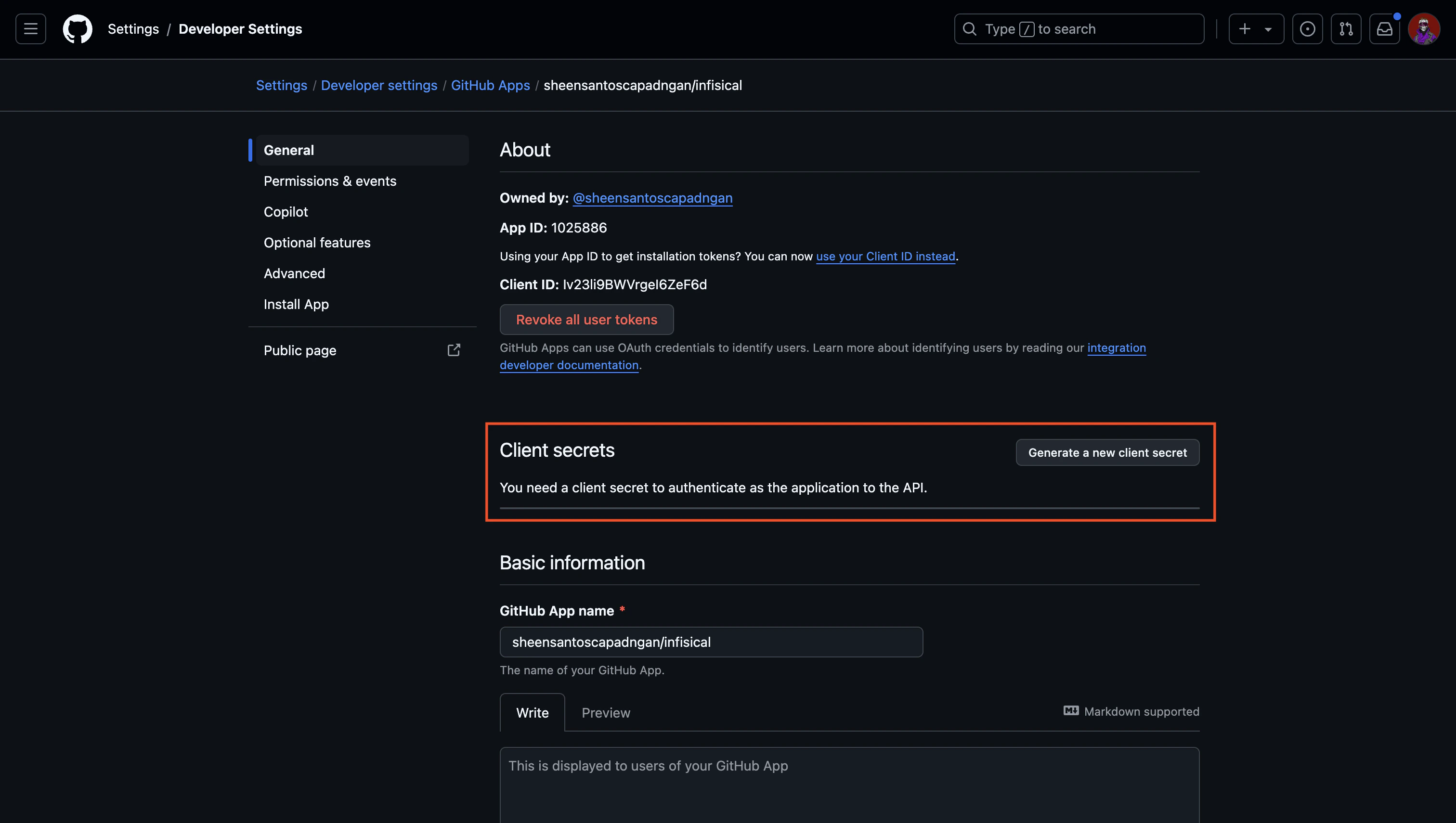
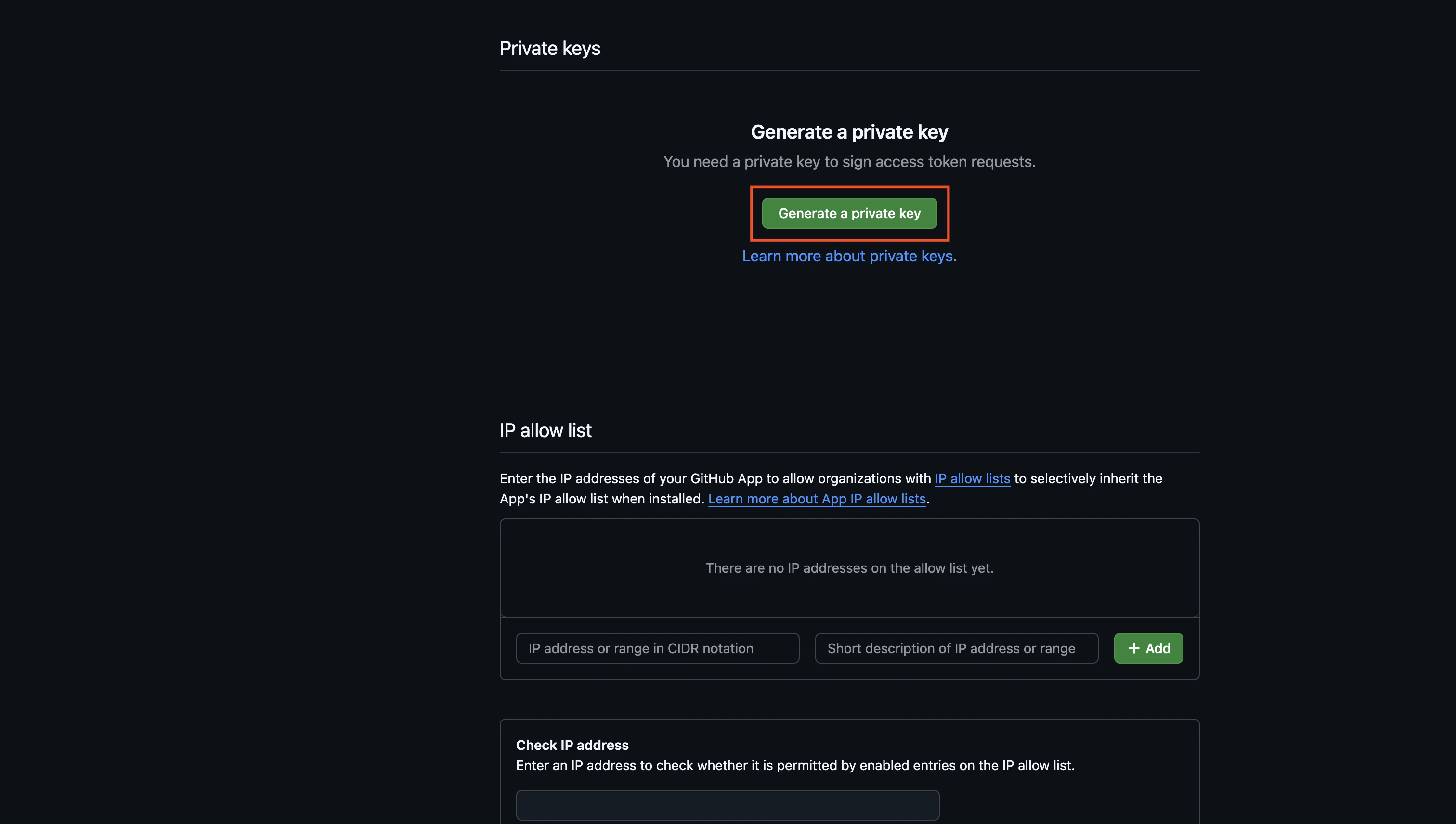
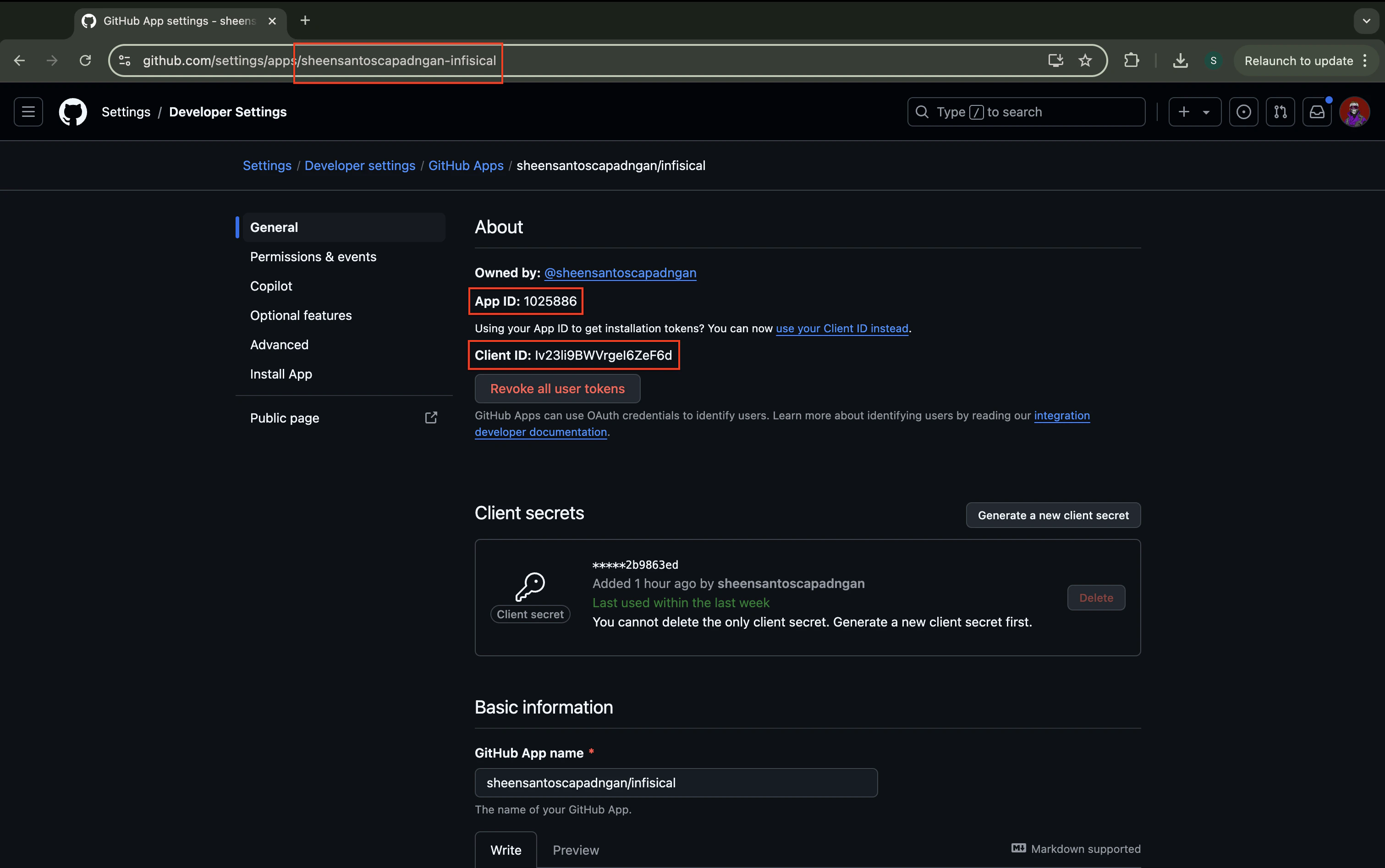
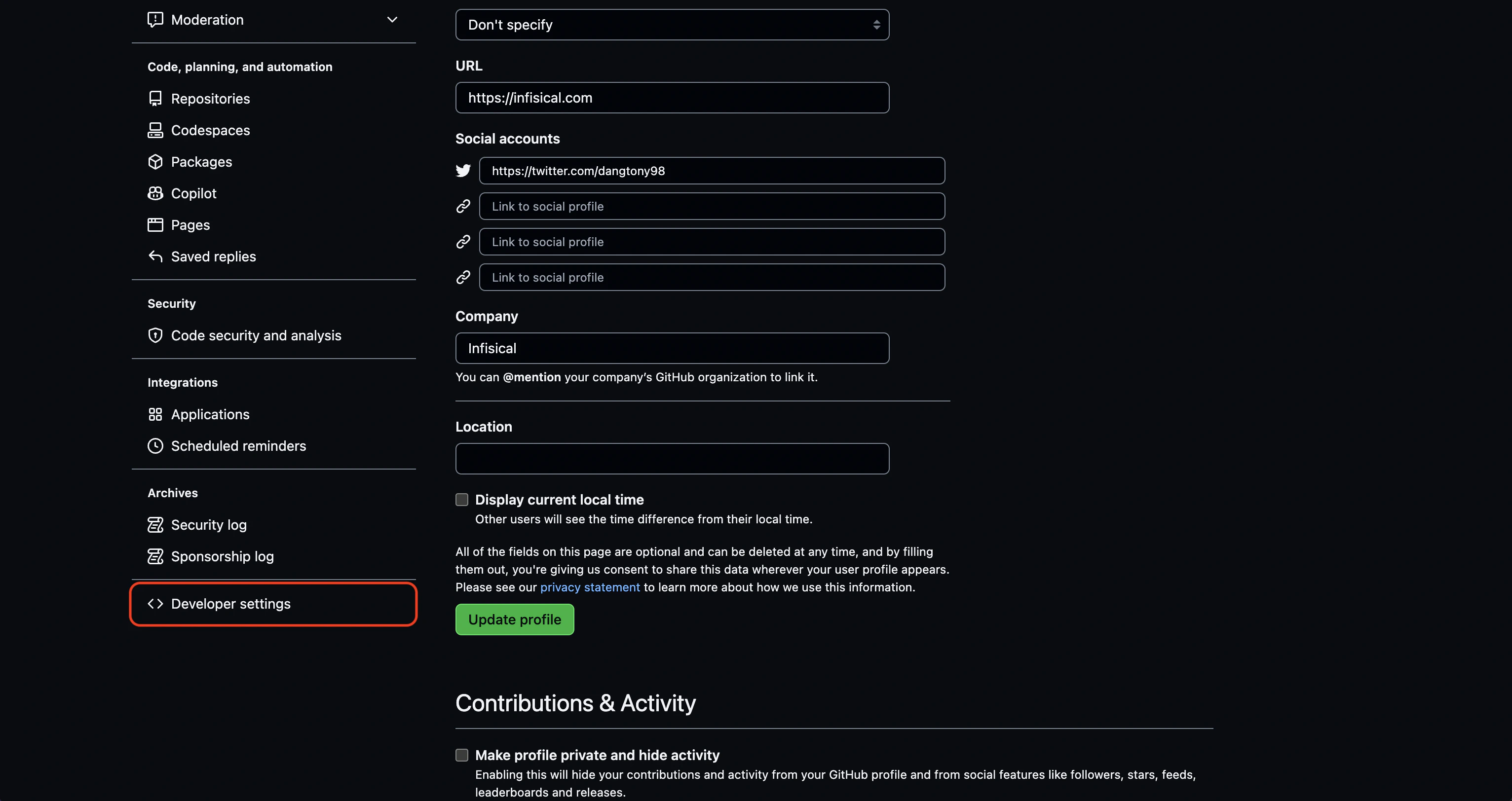
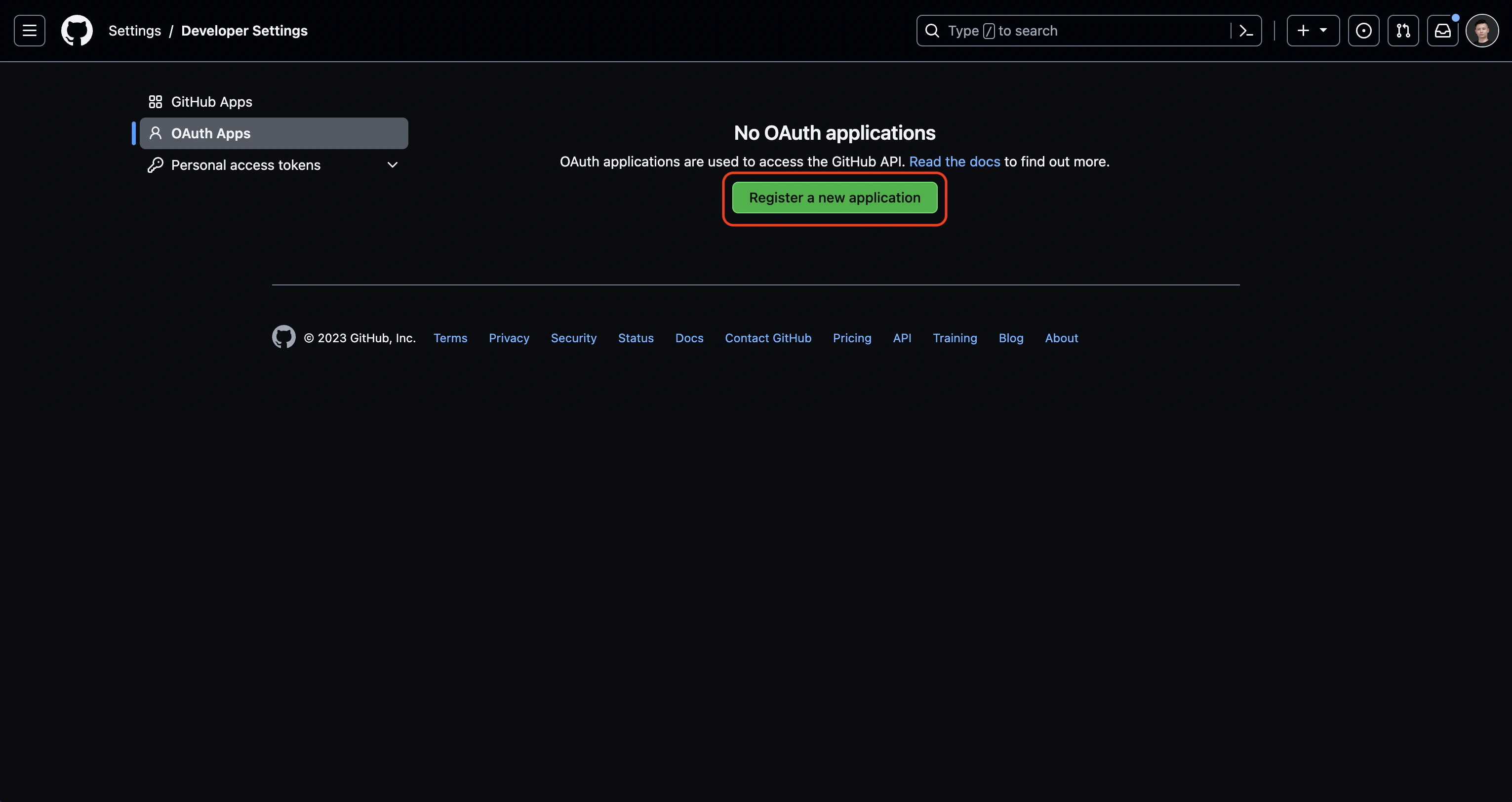
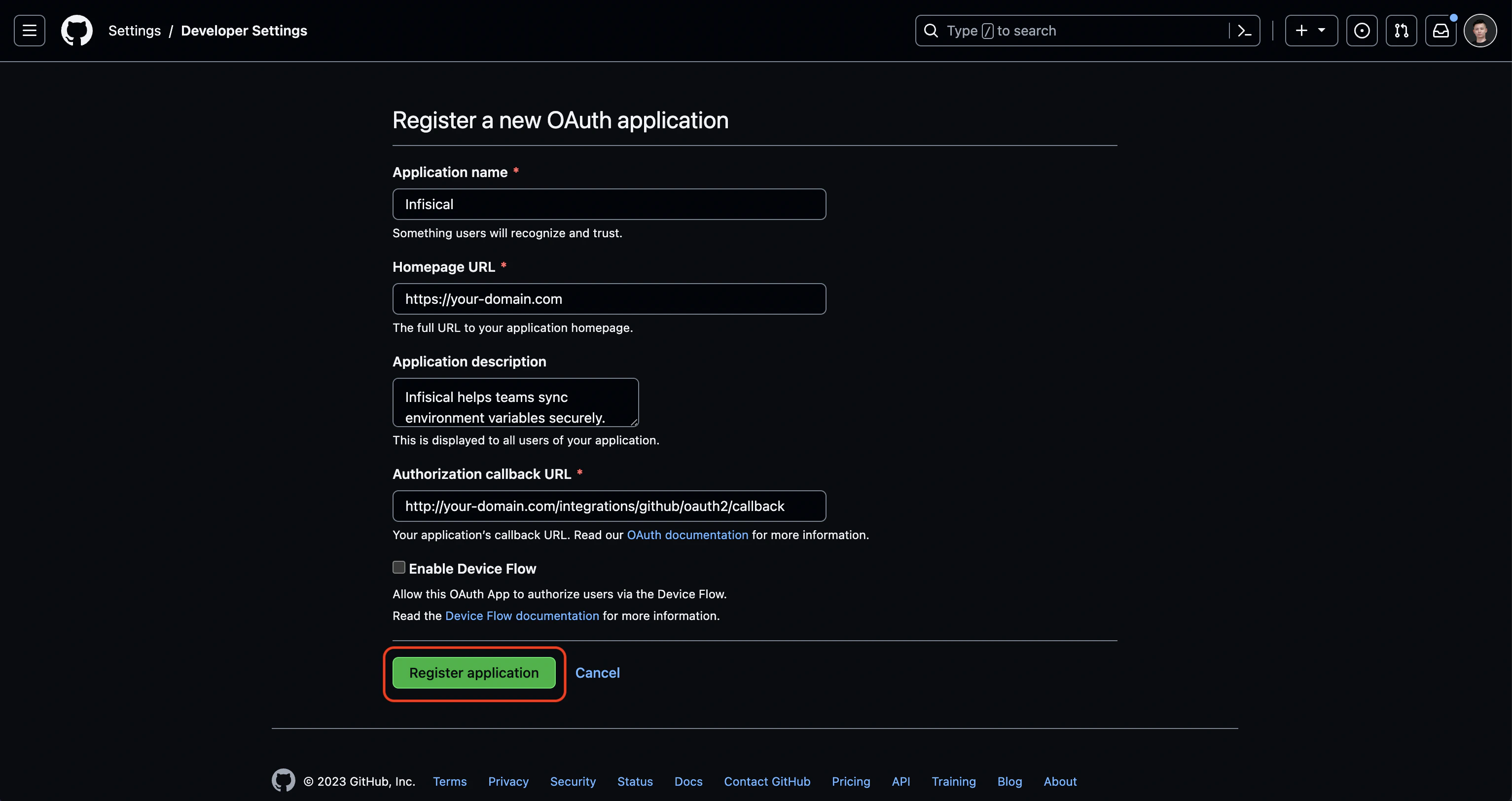
Using the GitHub integration with app authentication on a self-hosted instance of Infisical requires configuring an application on GitHub
and registering your instance with it.Create an application on GitHub
Connecting with GitHub OAuth
Prerequisites:
- Set up and add envars to Infisical Cloud
- Ensure that you have admin privileges to the repository you want to sync secrets to.
Configure Infisical GitHub integration
Select which Infisical environment secrets you want to sync to which GitHub organization, repository, or repository environment. Repository
Organization
Repository Environment
When using the organization scope, your secrets will be saved in the top-level of your GitHub Organization.You can choose the visibility, which defines which repositories can access the secrets. The options are:
- All public repositories: All public repositories in the organization can access the secrets.
- All private repositories: All private repositories in the organization can access the secrets.
- Selected repositories: Only the selected repositories can access the secrets. This gives a more fine-grained control over which repositories can access the secrets. You can select both private and public repositories with this option.
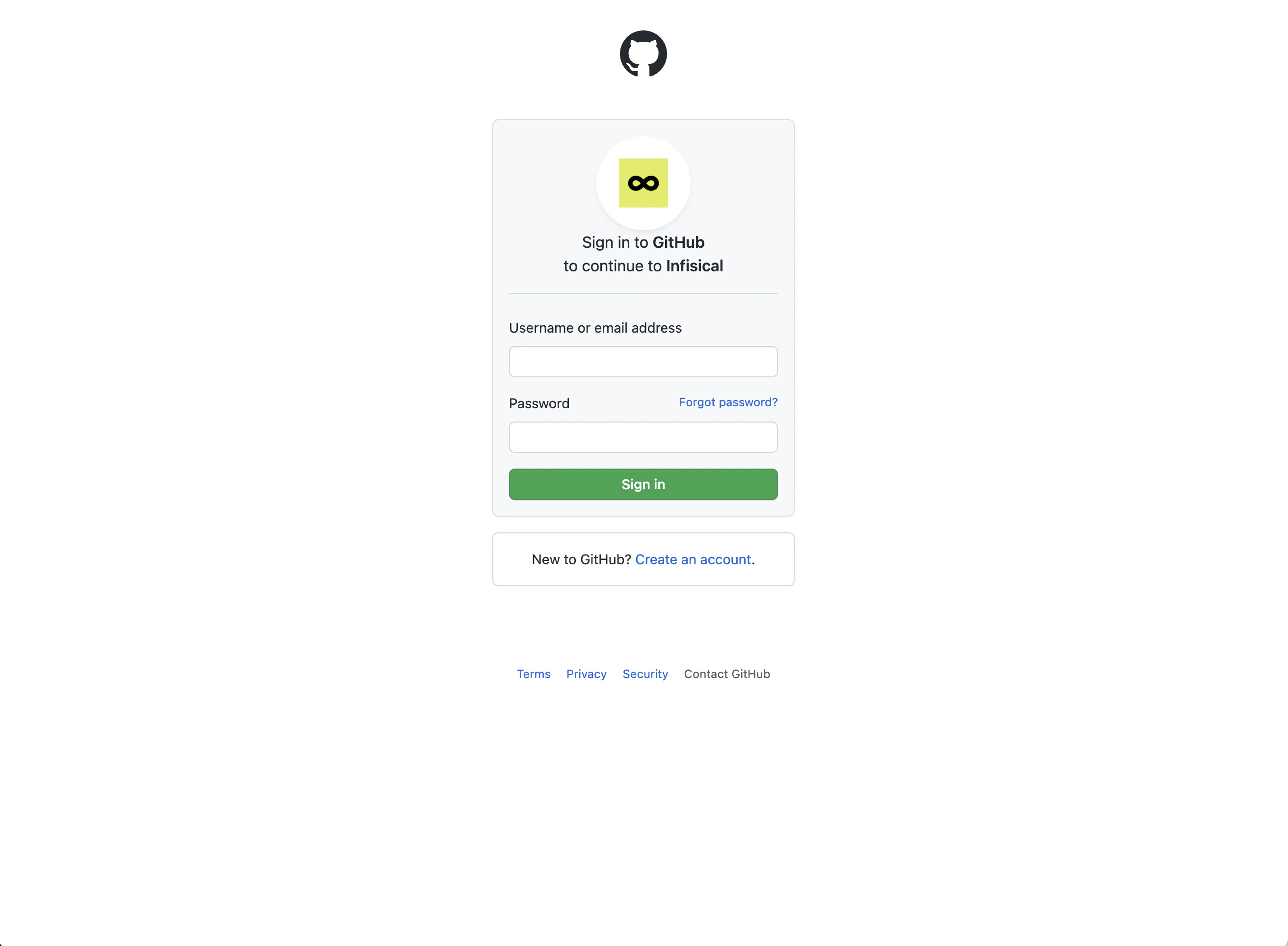
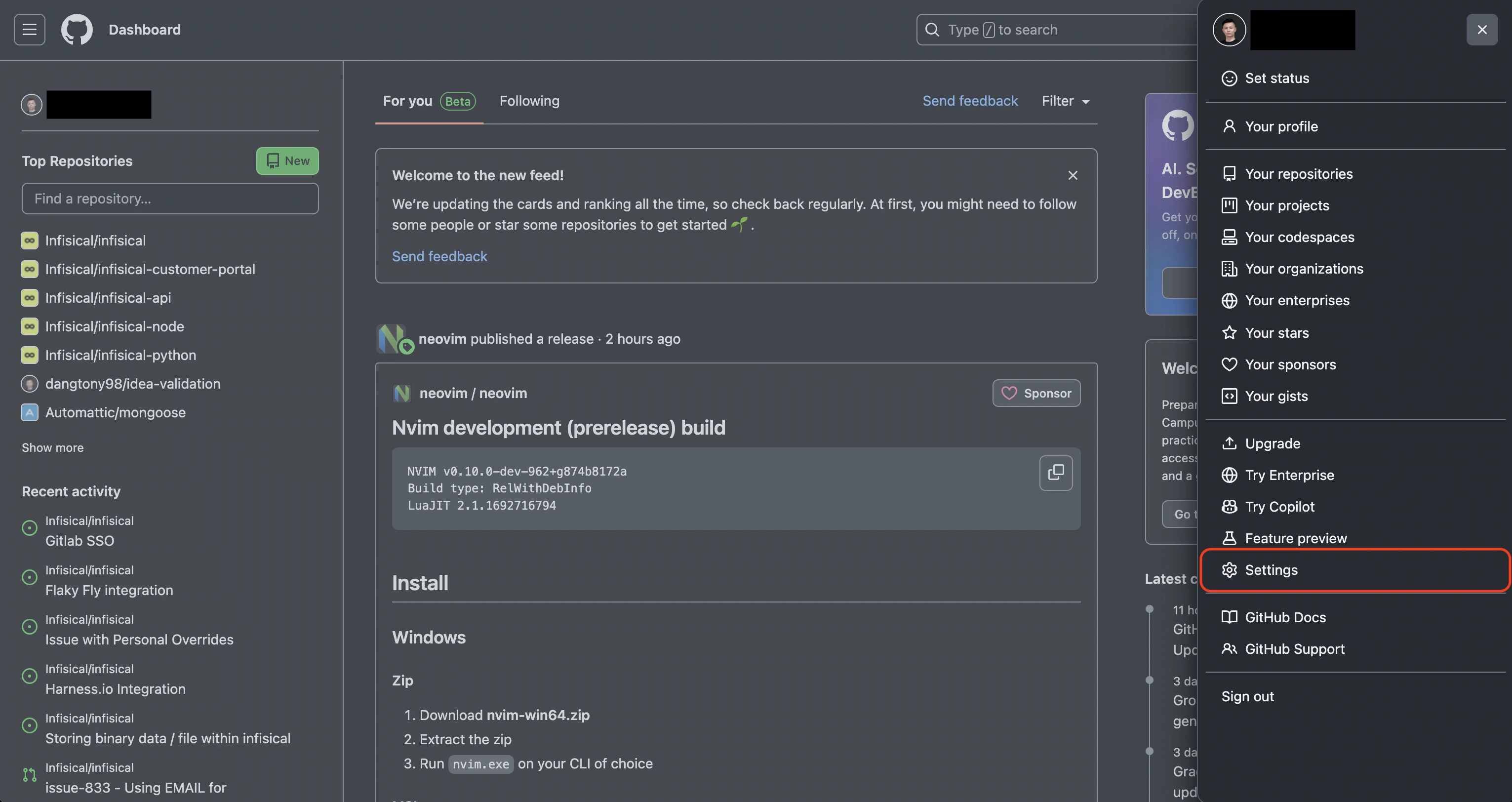
Using the GitHub integration on a self-hosted instance of Infisical requires configuring an OAuth application in GitHub
and registering your instance with it.Create an OAuth application in GitHub
Add your OAuth application credentials to Infisical
Obtain the Client ID and generate a new Client Secret for your GitHub OAuth application.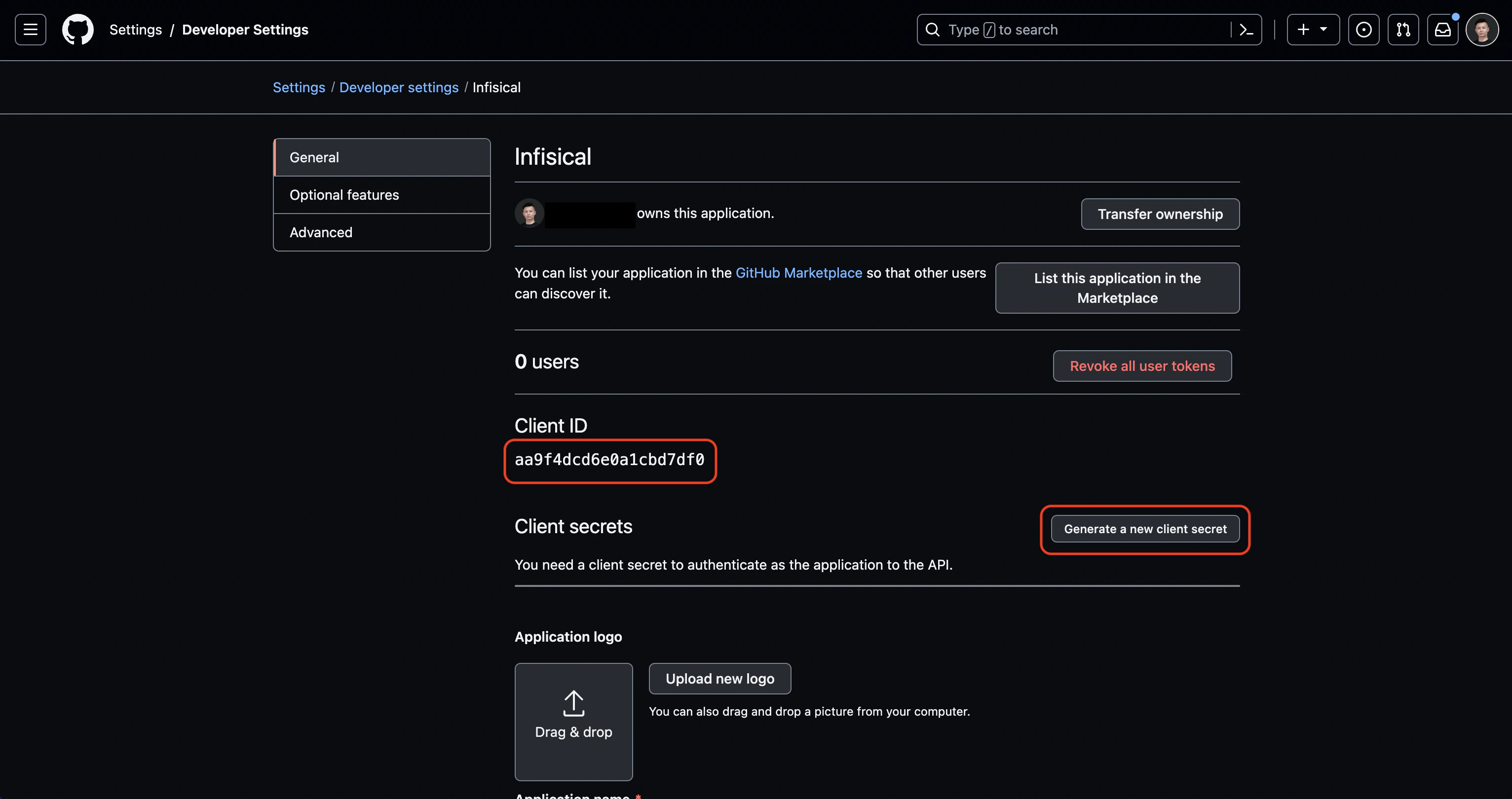 Back in your Infisical instance, add two new environment variables for the credentials of your GitHub OAuth application:
CLIENT_ID_GITHUB: The Client ID of your GitHub OAuth application.CLIENT_SECRET_GITHUB: The Client Secret of your GitHub OAuth application.
Once added, restart your Infisical instance and use the GitHub integration.