Use this file to discover all available pages before exploring further.
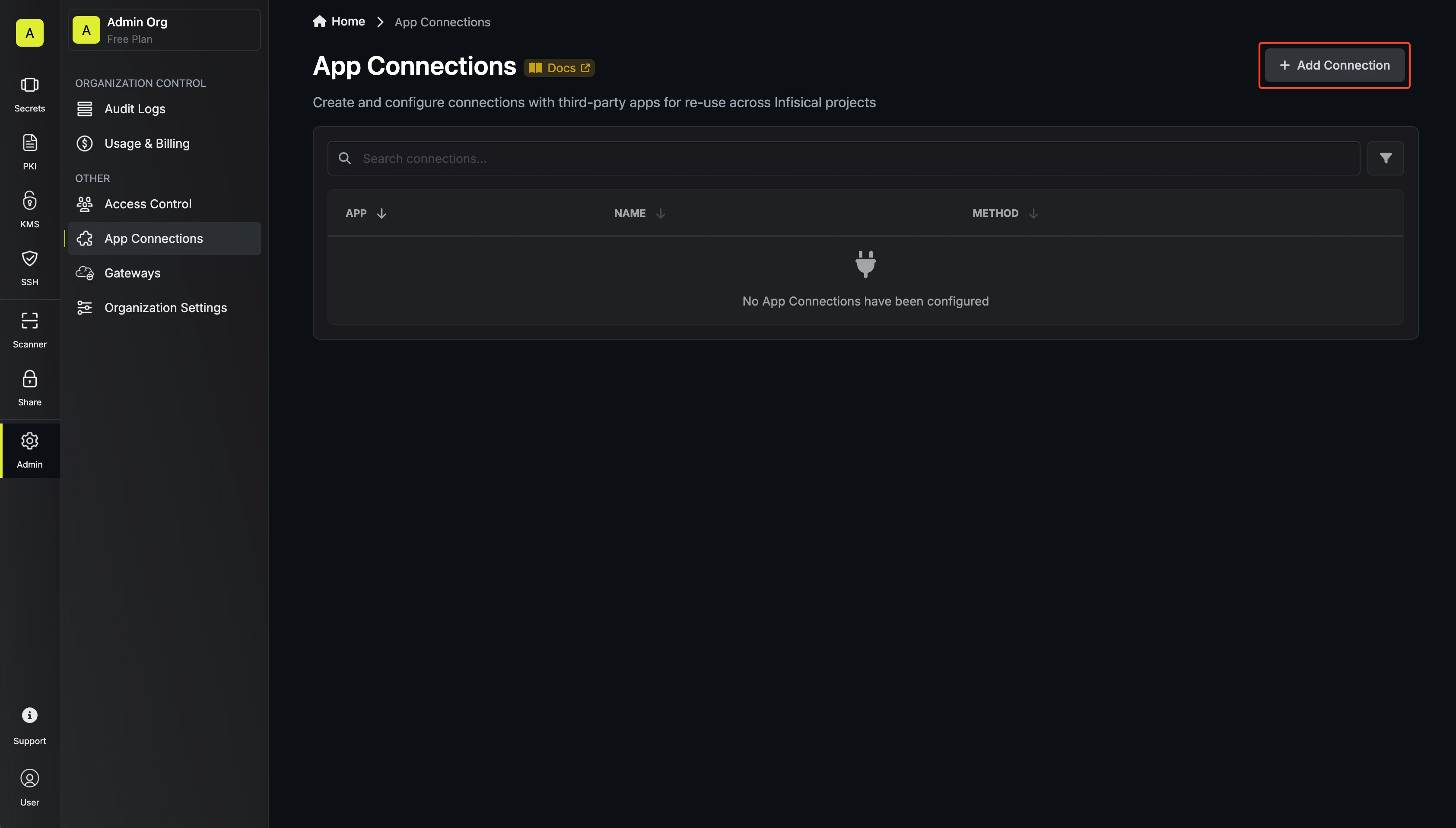
Infisical supports two methods for connecting to AWS.
Assume Role (Recommended)
Access Key
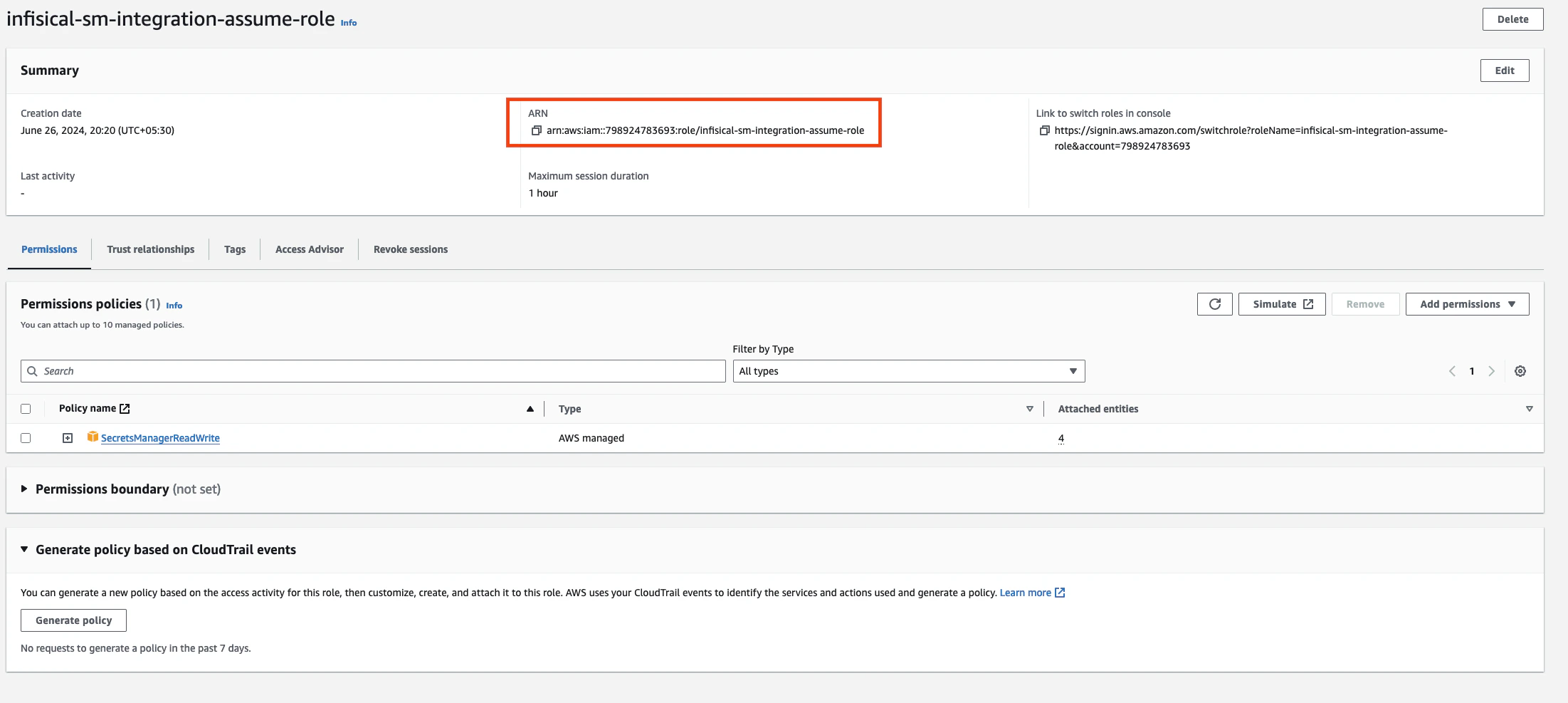
Infisical will assume the provided role in your AWS account securely, without the need to share any credentials.
Self-Hosted Instance
To connect your self-hosted Infisical instance with AWS, you need to set up an AWS IAM User account that can assume the configured AWS IAM Role.If your instance is deployed on AWS, the aws-sdk will automatically retrieve the credentials. Ensure that you assign the provided permission policy to your deployed instance, such as ECS or EC2.The following steps are for instances not deployed on AWS:
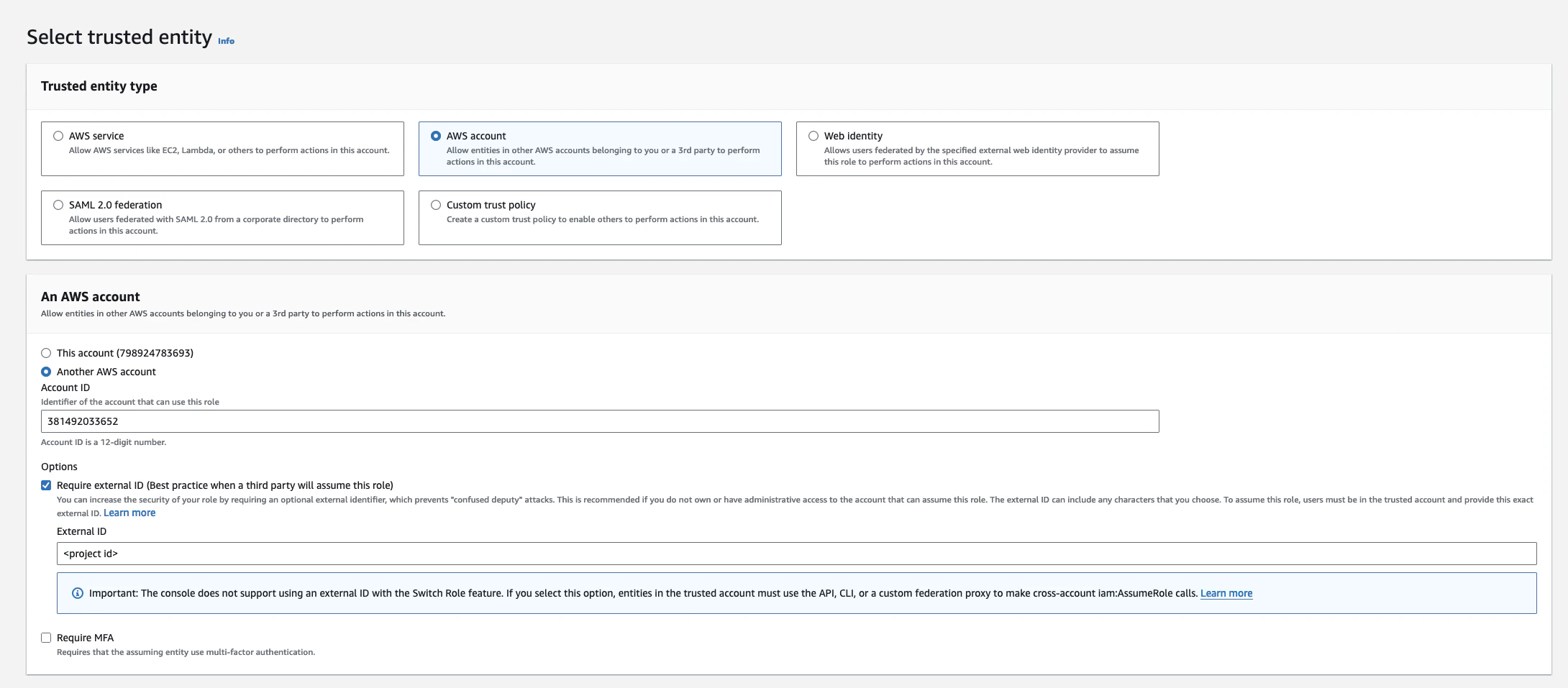
Select Another AWS Account and provide the appropriate Infisical AWS Account ID: use 381492033652 for the US region, and 345594589636 for the EU region. This restricts the role to be assumed only by Infisical. If self-hosting, provide your AWS account number instead.
(Recommended) Enable “Require external ID” and input your Organization ID to strengthen security and mitigate the confused deputy problem.
When configuring an IAM Role that Infisical will assume, it’s highly recommended to enable the “Require external ID” option and specify your Organization ID.This precaution helps protect your AWS account against the confused deputy problem, a potential security vulnerability where Infisical could be tricked into performing actions on your behalf by an unauthorized actor.
2
Add Required Permissions to the IAM Role
Navigate to your IAM role permissions and click Create Inline Policy.Depending on your use case, add one or more of the following policies to your IAM Role:
Secret Sync
Secret Rotation
AWS Secrets Manager
Use the following custom policy to grant the minimum permissions required by Infisical to sync secrets to AWS Secrets Manager:
{ "Version": "2012-10-17", "Statement": [ { "Sid": "AllowSecretsManagerAccess", "Effect": "Allow", "Action": [ "secretsmanager:ListSecrets", "secretsmanager:GetSecretValue", "secretsmanager:BatchGetSecretValue", "secretsmanager:CreateSecret", "secretsmanager:UpdateSecret", "secretsmanager:DeleteSecret", "secretsmanager:DescribeSecret", "secretsmanager:TagResource", "secretsmanager:UntagResource", "kms:ListAliases", // if you need to specify the KMS key "kms:Encrypt", // if you need to specify the KMS key "kms:Decrypt", // if you need to specify the KMS key "kms:DescribeKey" // if you need to specify the KMS key ], "Resource": "*" } ]}
If using a custom KMS key, be sure to add the IAM user or role as a key user.
AWS Parameter Store
Use the following custom policy to grant the minimum permissions required by Infisical to sync secrets to AWS Parameter Store:
{ "Version": "2012-10-17", "Statement": [ { "Sid": "AllowSSMAccess", "Effect": "Allow", "Action": [ "ssm:PutParameter", "ssm:GetParameters", "ssm:GetParametersByPath", "ssm:DescribeParameters", "ssm:DeleteParameters", "ssm:ListTagsForResource", // if you need to add tags to secrets "ssm:AddTagsToResource", // if you need to add tags to secrets "ssm:RemoveTagsFromResource", // if you need to add tags to secrets "kms:ListAliases", // if you need to specify the KMS key "kms:Encrypt", // if you need to specify the KMS key "kms:Decrypt", // if you need to specify the KMS key "kms:DescribeKey" // if you need to specify the KMS key ], "Resource": "*" } ]}
If using a custom KMS key, be sure to add the IAM user or role as a key user.
AWS IAM
Use the following custom policy to grant the minimum permissions required by Infisical to rotate secrets to AWS Access Keys:
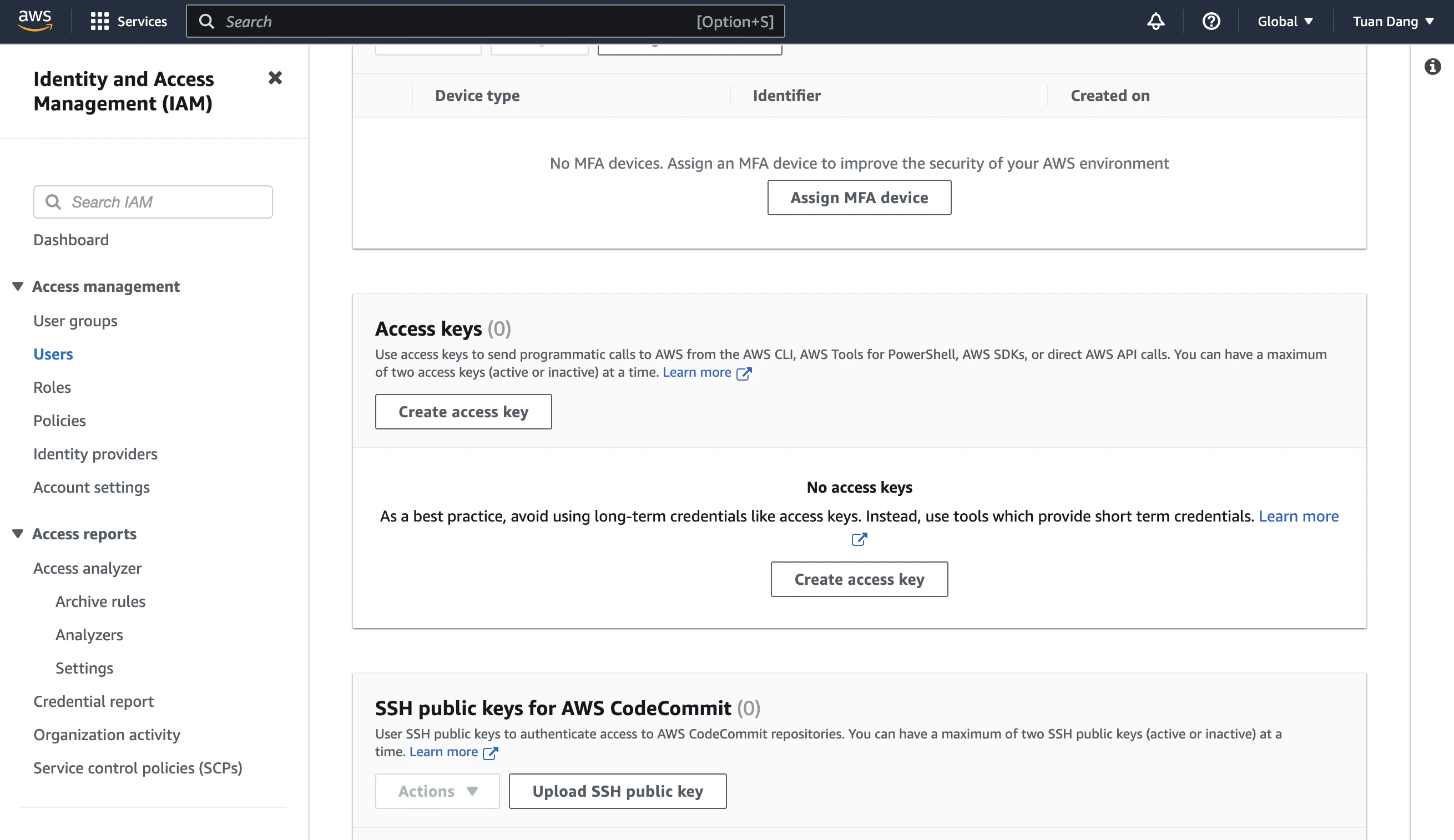
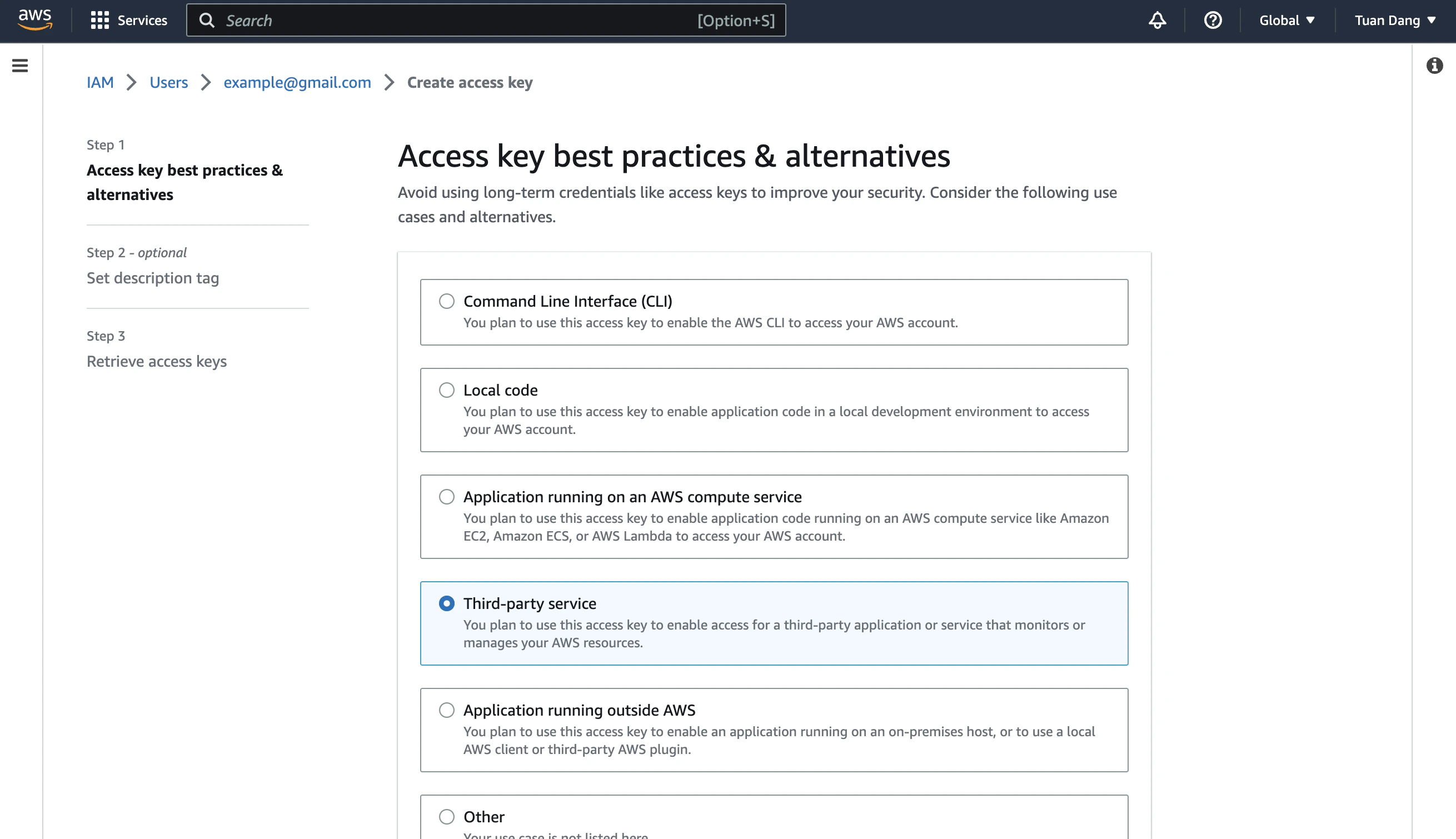
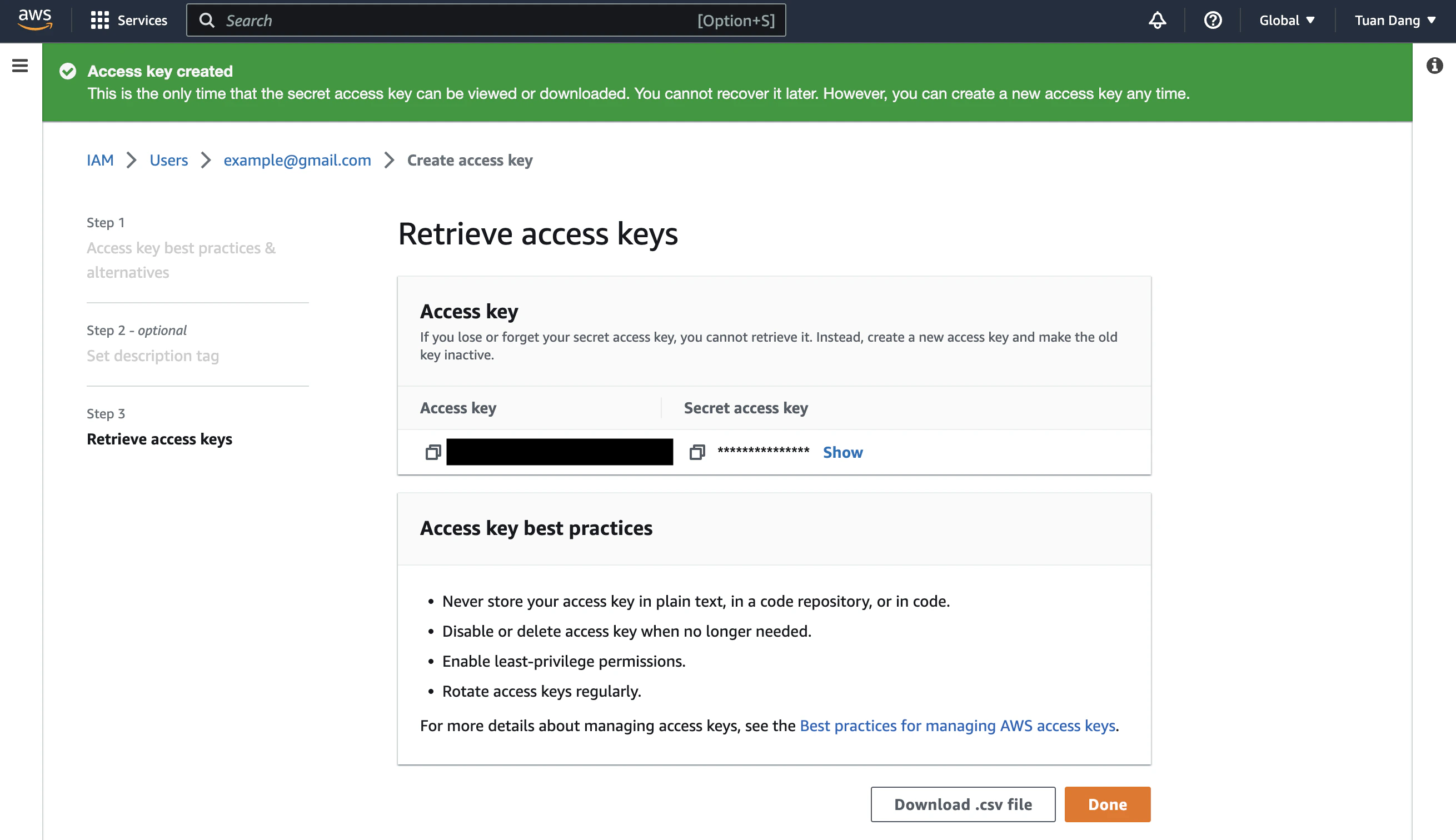
Infisical will use the provided Access Key ID and Secret Key to connect to your AWS instance.
1
Add Required Permissions to the IAM User
Navigate to your IAM user permissions and click Create Inline Policy.Depending on your use case, add one or more of the following policies to your user:
Secret Sync
Secret Rotation
AWS Secrets Manager
Use the following custom policy to grant the minimum permissions required by Infisical to sync secrets to AWS Secrets Manager:
{ "Version": "2012-10-17", "Statement": [{ "Sid": "AllowSecretsManagerAccess", "Effect": "Allow", "Action": [ "secretsmanager:ListSecrets", "secretsmanager:GetSecretValue", "secretsmanager:BatchGetSecretValue", "secretsmanager:CreateSecret", "secretsmanager:UpdateSecret", "secretsmanager:DeleteSecret", "secretsmanager:DescribeSecret", "secretsmanager:TagResource", "secretsmanager:UntagResource", "kms:ListAliases", // if you need to specify the KMS key "kms:Encrypt", // if you need to specify the KMS key "kms:Decrypt", // if you need to specify the KMS key "kms:DescribeKey" // if you need to specify the KMS key ], "Resource": "*"} ]}
If using a custom KMS key, be sure to add the IAM user or role as a key user.
AWS Parameter Store
Use the following custom policy to grant the minimum permissions required by Infisical to sync secrets to AWS Parameter Store:
{ "Version": "2012-10-17", "Statement": [{ "Sid": "AllowSSMAccess", "Effect": "Allow", "Action": [ "ssm:PutParameter", "ssm:GetParameters", "ssm:GetParametersByPath", "ssm:DescribeParameters", "ssm:DeleteParameters", "ssm:ListTagsForResource", // if you need to add tags to secrets "ssm:AddTagsToResource", // if you need to add tags to secrets "ssm:RemoveTagsFromResource", // if you need to add tags to secrets "kms:ListAliases", // if you need to specify the KMS key "kms:Encrypt", // if you need to specify the KMS key "kms:Decrypt", // if you need to specify the KMS key "kms:DescribeKey" // if you need to specify the KMS key ], "Resource": "*"} ]}
If using a custom KMS key, be sure to add the IAM user or role as a key user.
AWS IAM
Use the following custom policy to grant the minimum permissions required by Infisical to rotate secrets to AWS Access Keys: