Infisical supports the use of API Tokens to connect with Bitbucket.Documentation Index
Fetch the complete documentation index at: https://infisical-feat-gateway-connector.mintlify.app/llms.txt
Use this file to discover all available pages before exploring further.
Create Bitbucket Access Token
Create API Token
Go to Account API Tokens and click Create API token with scopes.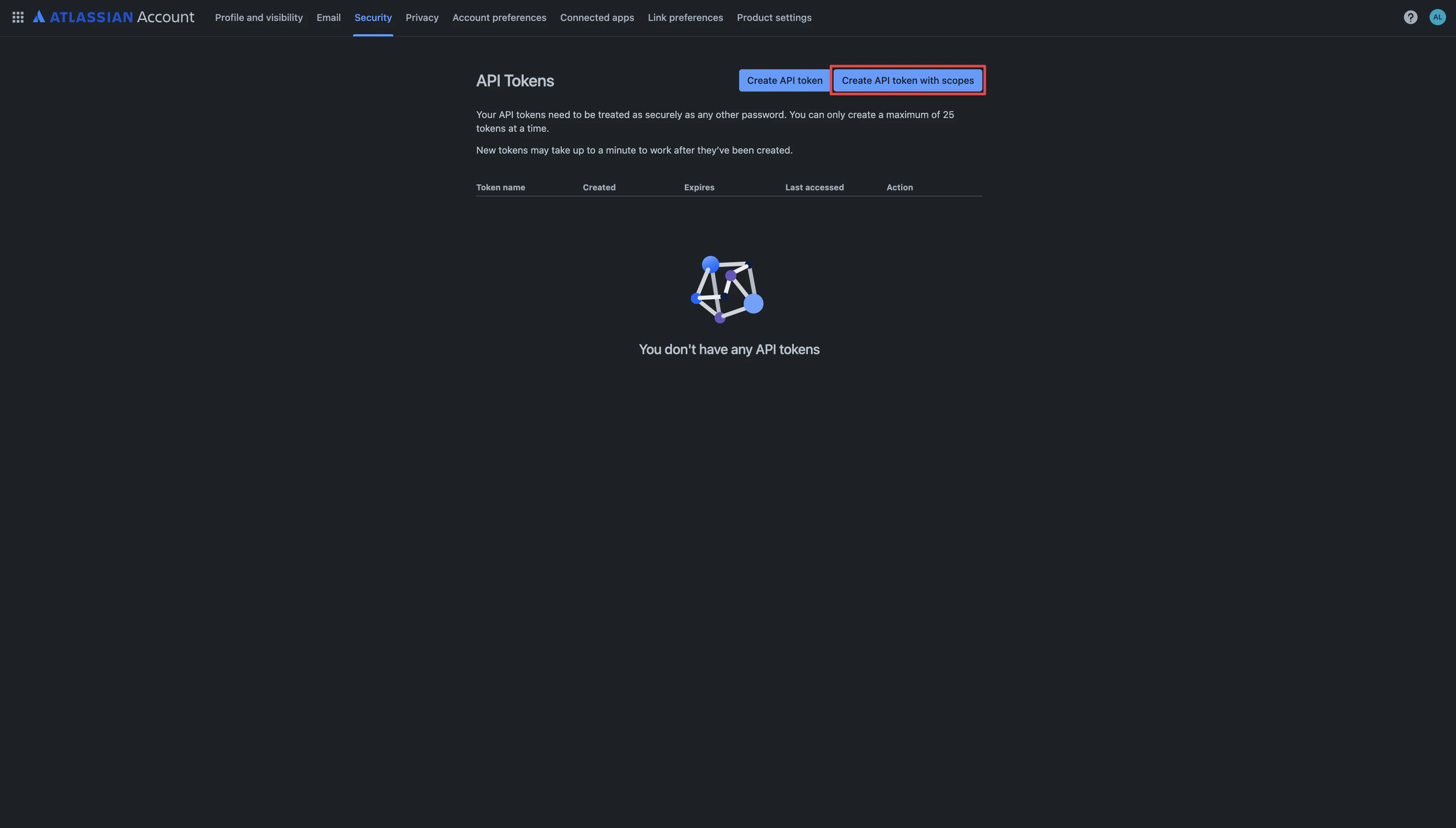
Set Name and Expiry
Set the name and expiration date of the token, then click Next.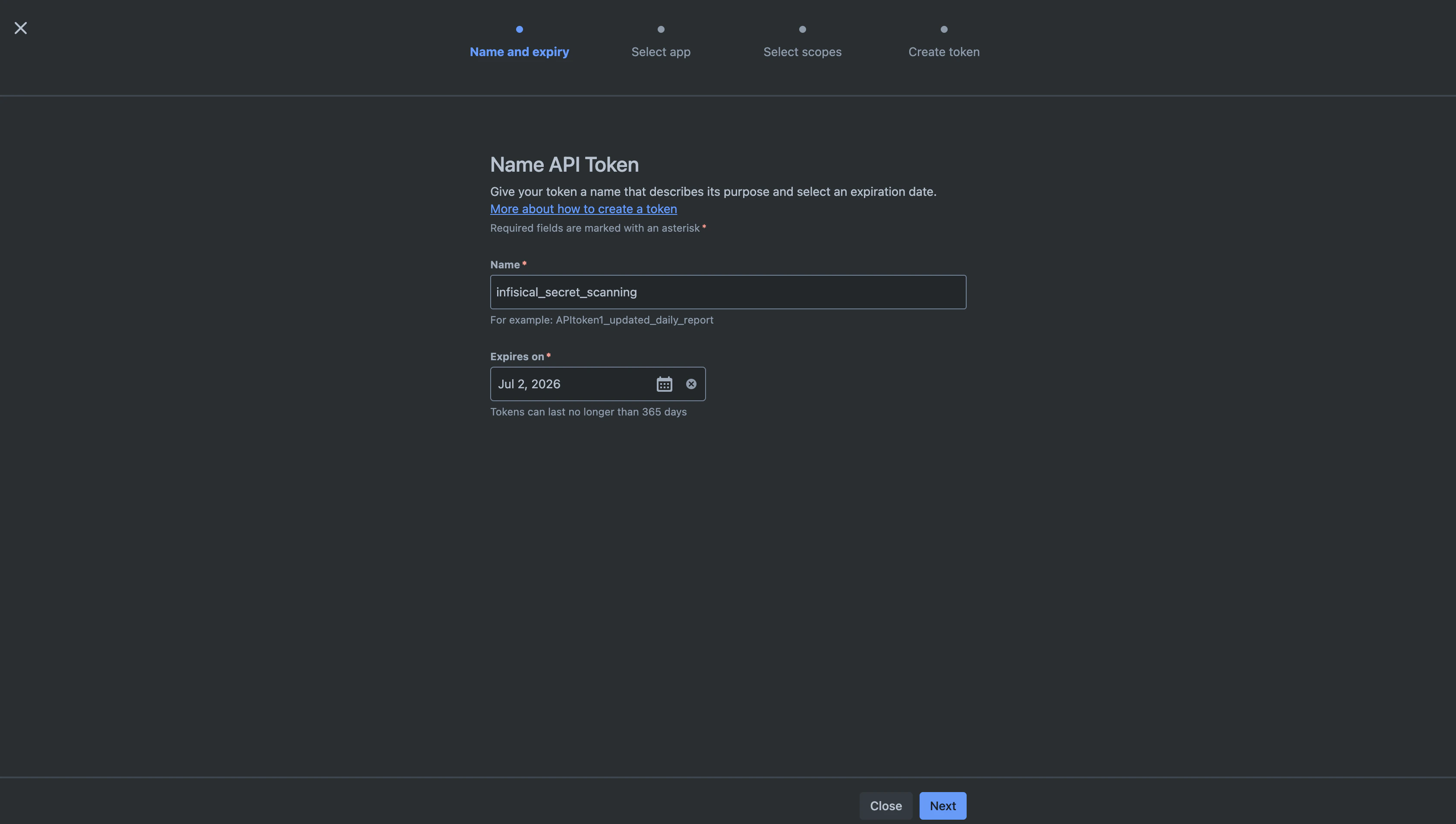
Keep in mind that you’ll need to manually replace the token after it expires.
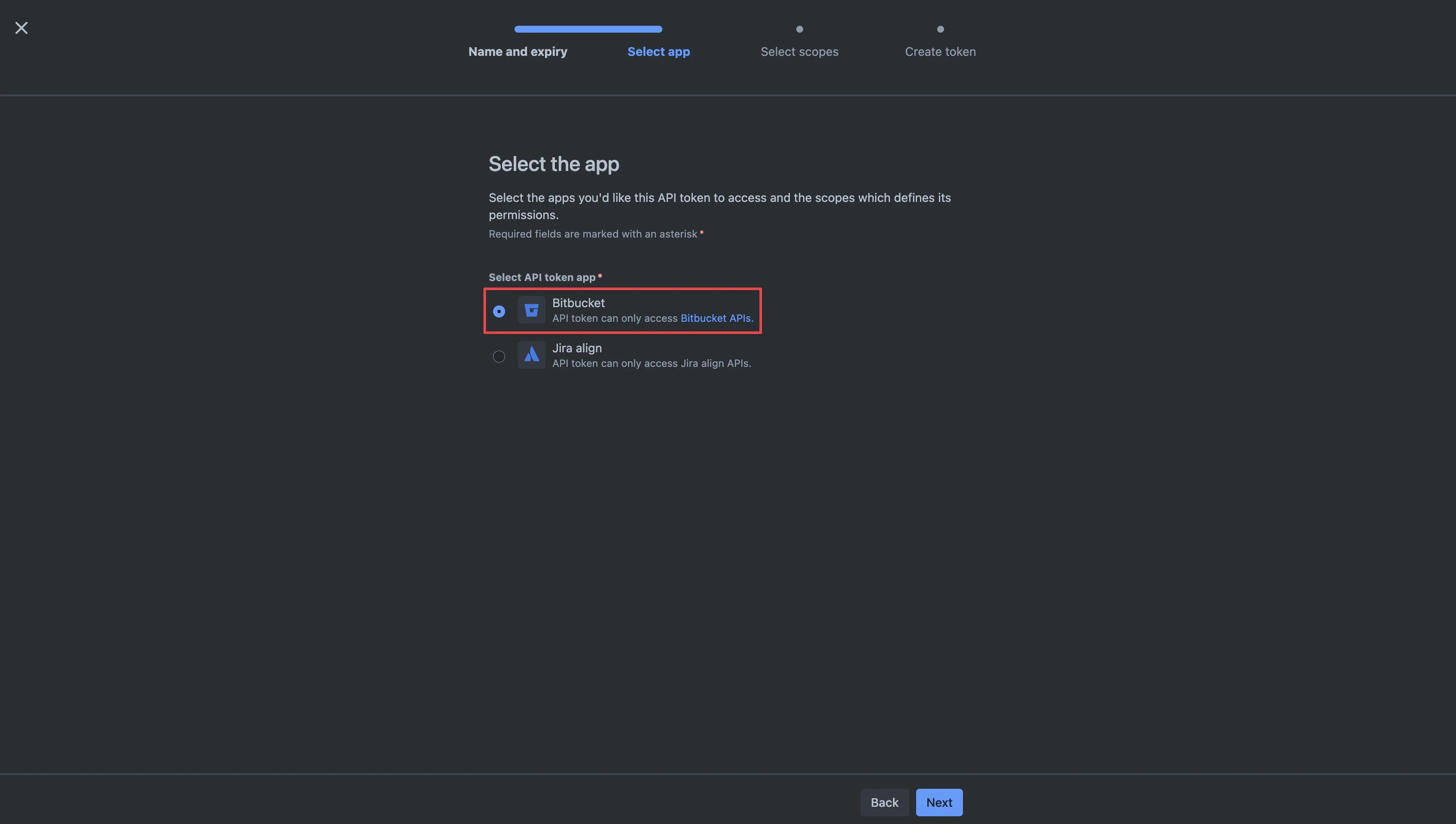
Configure Permissions
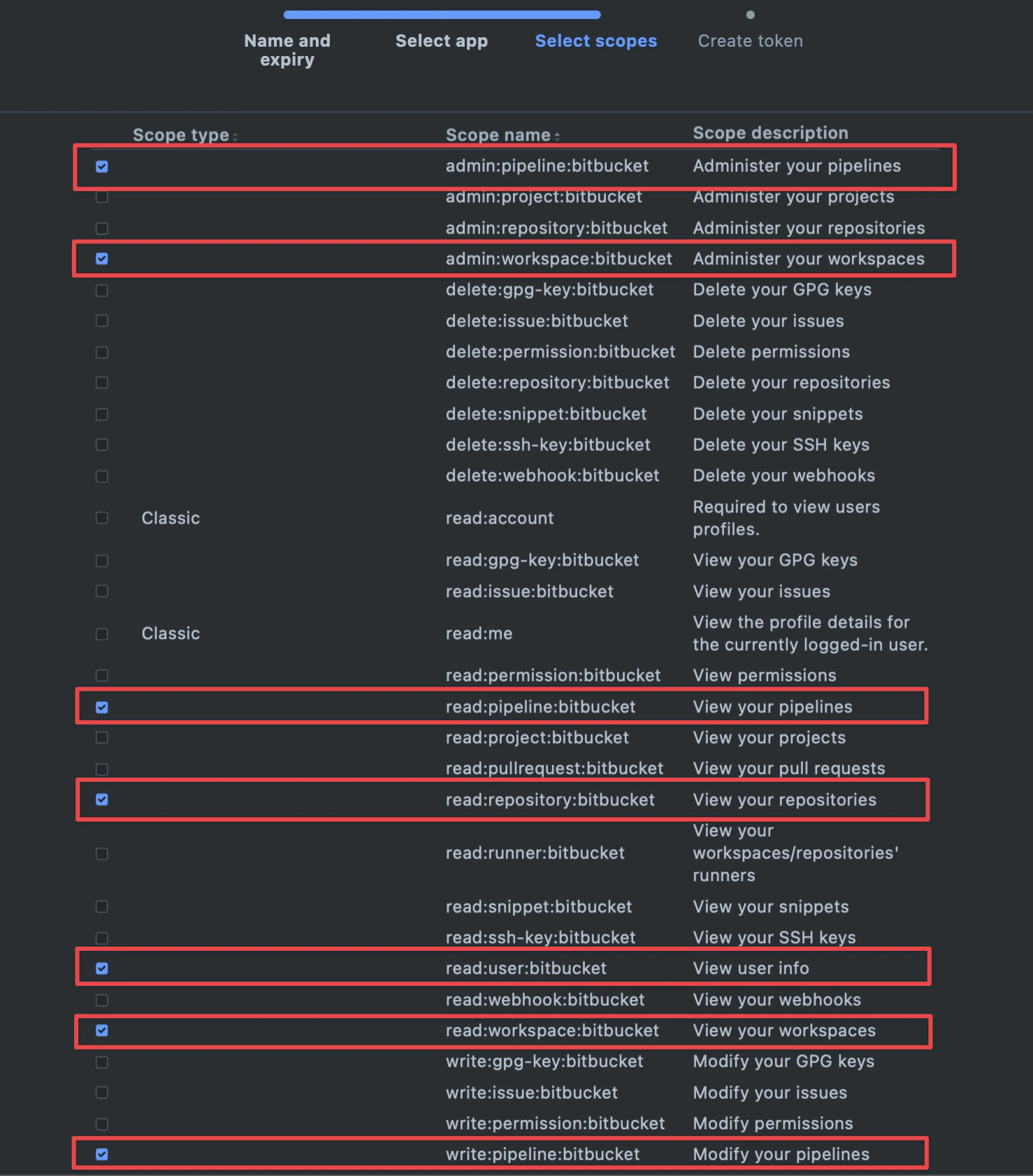
Configure permissions according to your app’s use case: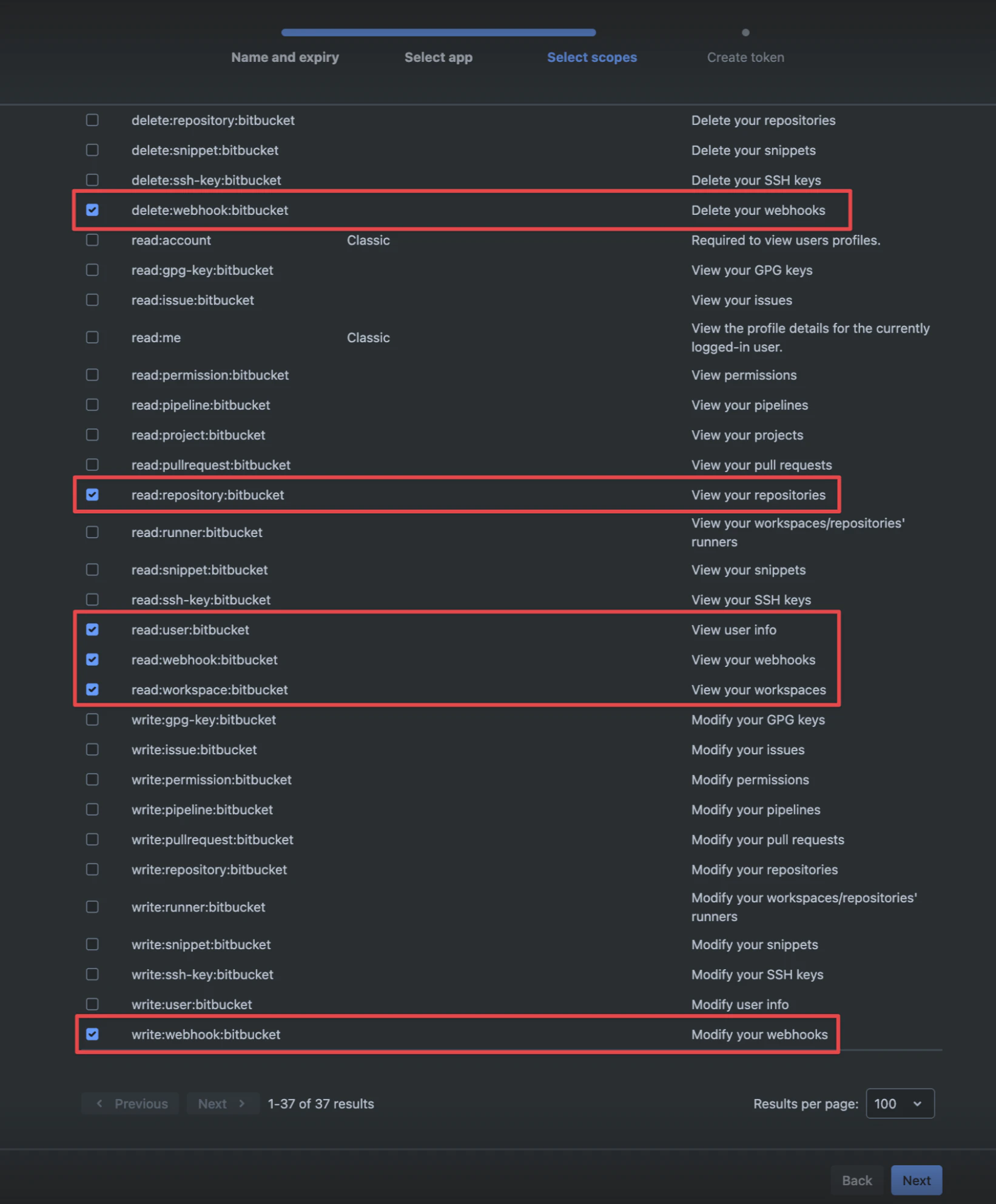
- Secret Scanning
- Secret Sync
Create Bitbucket Connection in Infisical
- Infisical UI
- API
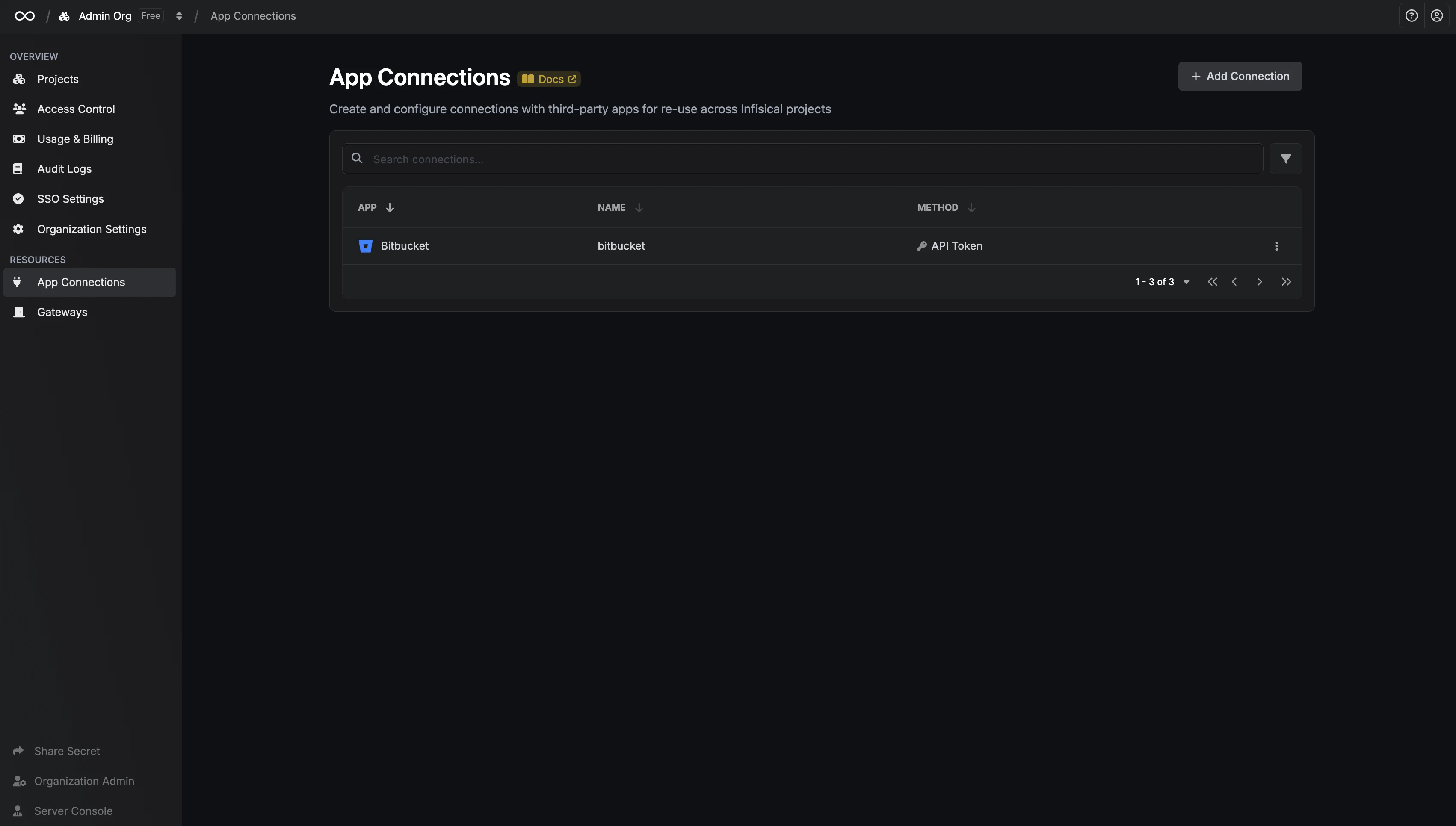
Navigate to App Connections
In your Infisical dashboard, go to Organization Settings and select the App Connections tab.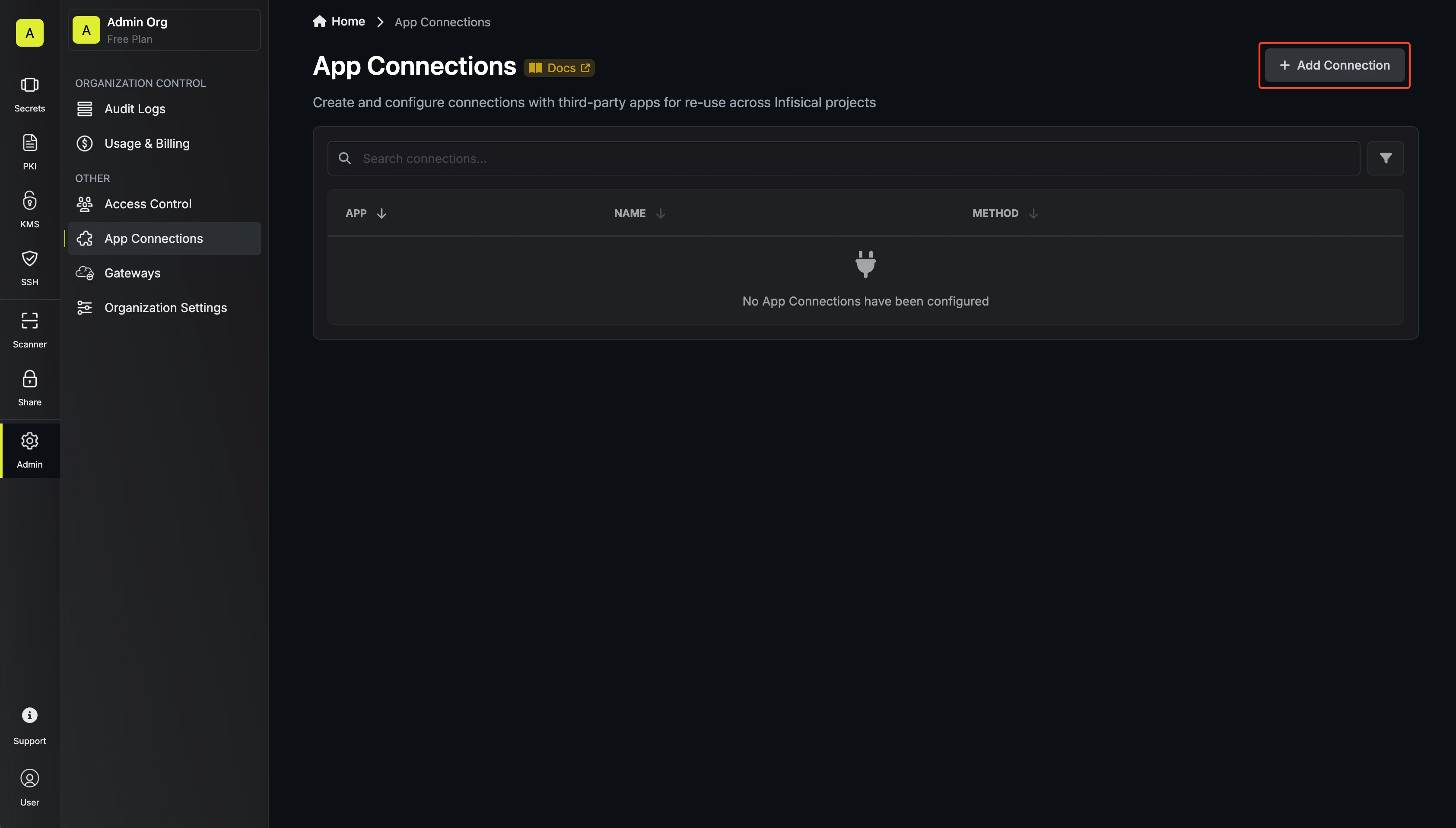
Select Bitbucket Connection
Click the Add new connection button and select Bitbucket from the list of available connections.
Fill out the Bitbucket Connection Modal
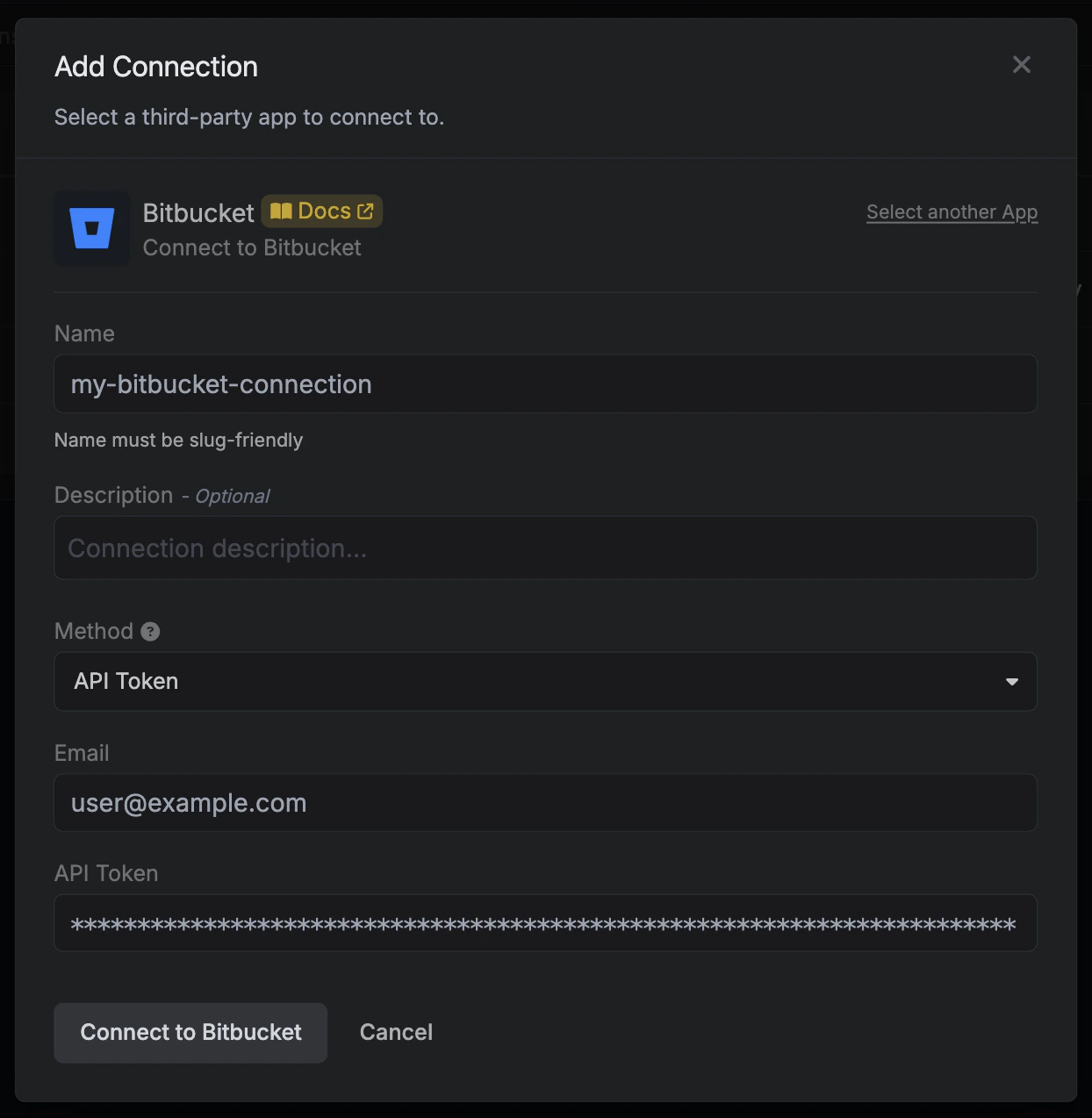
Complete the Bitbucket Connection form by entering:
- A descriptive name for the connection
- An optional description for future reference
- Your Bitbucket email
-
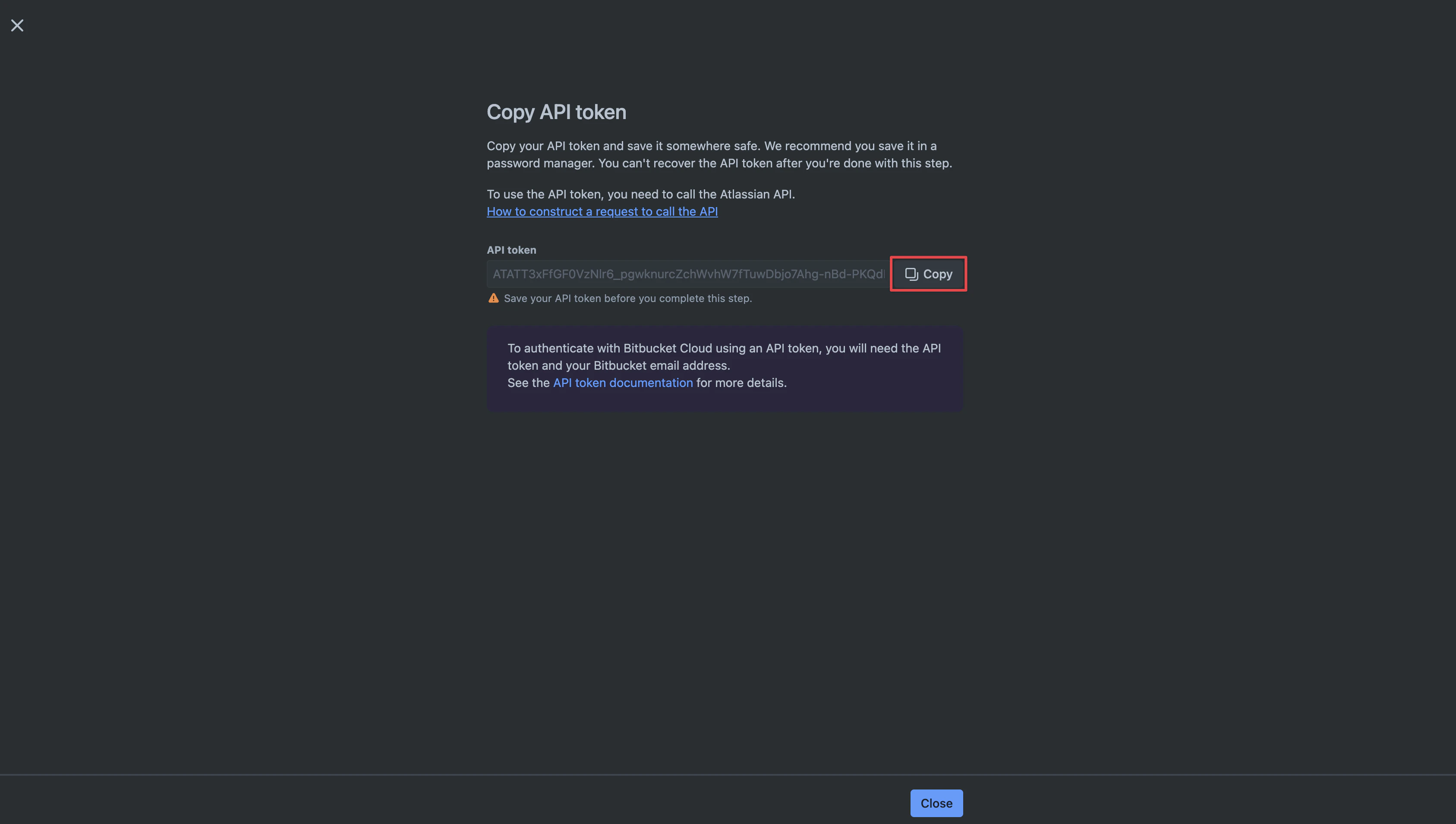
The API Token from earlier steps